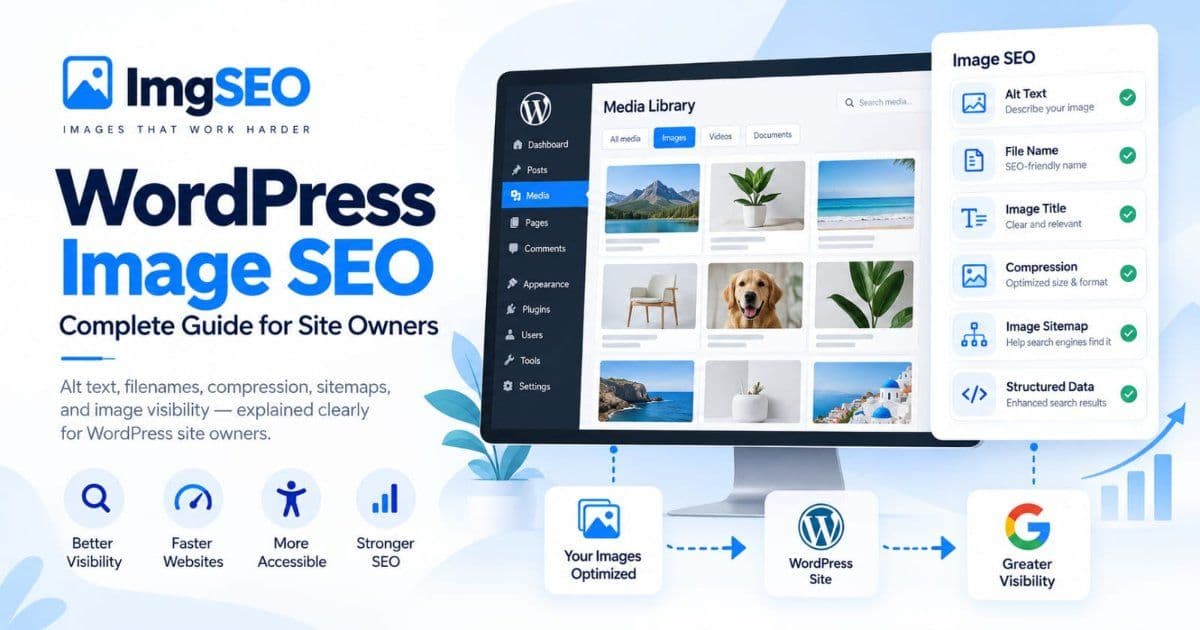
A WordPress site can accumulate hundreds or thousands of images across posts, pages, reusable blocks, galleries, featured-image slots, theme assets, and plugin-generated layouts. Each image may also have a Media Library record, several generated sizes, and multiple places where it is rendered. That makes image SEO a management problem, not a single field to complete once.
The practical goal is to make important images understandable in their page context, accessible to people who cannot see them, technically discoverable, efficiently delivered, and maintainable inside WordPress. Those outcomes involve different controls. Alt text cannot repair an uncrawlable page, compression cannot replace a useful description, and a descriptive filename does not guarantee indexing.
This guide explains the complete WordPress workflow at a site-owner level. It deliberately summarizes specialist subjects and points to deeper guidance rather than turning every section into another full tutorial. For the broader principles beyond WordPress, use the complete Image SEO guide.
Key takeaways
- Treat WordPress image SEO as a recurring workflow across content, accessibility, delivery, and discovery.
- Judge alt text from the image's purpose in a specific page, not from the file alone.
- Verify what the published page renders; Media Library values do not guarantee identical output in every theme or plugin.
- Prioritize important pages and images, then recheck them after changes to themes, plugins, or CDN settings.
What WordPress Image SEO Actually Includes
WordPress image SEO is the combined practice of giving an image useful context, rendering it accessibly, delivering an appropriate resource, and keeping both the page and image reachable to search crawlers. No fixed weighting applies to every site, and the layers should not be treated as interchangeable checklist items.
The main layers are:
- Image and page context: The page topic, nearby text, caption when useful, and the role the image plays in the content.
- Alternative text: A text alternative based on the image's purpose for readers who cannot see it.
- Filename considerations: A short, descriptive source filename established before upload when practical.
- Media Library management: The attachment record and its title, caption, description, alt text, URL, and generated files.
- Dimensions and responsive delivery: Appropriate source dimensions plus markup that lets browsers select a suitable resource.
- Compression and format: A visually acceptable result delivered without unnecessary bytes.
- Loading behavior and page performance: Sensible handling of offscreen images and careful treatment of likely Largest Contentful Paint images.
- Discovery and indexability: Crawlable pages, reachable image URLs, coherent canonical handling, and sitemaps where useful.
- Structured data: Relevant page-level markup for eligible content types, not a substitute for an accessible image or a useful page.
Google's image guidance describes page context, standard HTML image elements, alt text, filenames, responsive delivery, quality, and discovery as related considerations. It does not turn them into a universal scorecard. Start with what the image does for the page and the reader, then verify the technical output.
Understand the WordPress Media Library Fields
The Media Library is an asset-management layer built around attachment records. Its fields can supply defaults or content to themes and plugins, but a saved value does not prove that every front-end placement will render it.
Alt Text
Alt Text stores the default alternative text associated with the attachment. In the block editor, an author can set alternative text for a specific Image block, and that page-level value can differ from the Media Library default. This is useful when the same file serves different purposes in different contexts.
Title
The attachment title helps identify the item in WordPress and may appear on attachment pages or in gallery output when a theme or plugin chooses to use it. Editing this title does not rename the physical file or automatically change the image URL.
Caption
A caption is visible supporting text when the chosen block, theme, or gallery renders it. Use one when readers benefit from an attribution, explanation, location, date, or other context that belongs visibly beside the image. Do not fill captions merely to repeat alt text.
Description
The attachment description is longer content associated with the media record. Some attachment templates or plugins display it; many ordinary image placements do not. Treat it as optional managed content, not a field that must be populated for every image.
Attachment record and URL
WordPress stores an attachment as a content record and maintains information about its uploaded file. Themes or SEO plugins may expose, redirect, or suppress attachment pages. The public image URL, the attachment page URL, and the page containing the image are separate resources with different purposes.
WordPress documentation likewise notes that title, caption, alt text, and description can be used differently by attachment pages, galleries, and editing interfaces. Audit the published HTML and visible page rather than assuming that a back-office field always appears in a particular way.
Alt Text: Accessibility First, SEO Context Second
Alt text exists primarily to provide an alternative for people who cannot perceive an informative image. Its best wording depends on why the image appears on that page, not simply on what objects a vision model or editor can identify.
For an informative image, describe the information needed to understand the surrounding content. A portfolio photograph might need the project type and relevant visual detail. A chart needs the conclusion that the chart communicates, with fuller data available in nearby text when necessary. A functional image, such as an icon-only control, needs to convey the action rather than its appearance.
For a purely decorative image, an empty alt attribute (alt="") normally lets assistive technology ignore it. The W3C's image guidance emphasizes that this decision depends on the image's purpose in context. The same photograph can be informative on one page and decorative on another.
Avoid keyword stuffing, lists of loosely related phrases, and boilerplate copied across a gallery. Google advises writing useful, contextual alt text and warns against filling attributes with keywords. For a deeper explanation of the field and its accessibility role, see what alt text is and how to use it.
WooCommerce product images add product, gallery, and variation considerations. Store owners should use the dedicated guide to adding alt text to WooCommerce product images instead of treating a general WordPress workflow as product-catalog guidance.
Image Filenames in WordPress
An image filename is normally established before upload and becomes part of the uploaded file's URL after WordPress sanitizes it. A short, descriptive filename can provide light context, but it cannot compensate for weak page content, missing accessibility information, or an image that crawlers cannot reach.
Plan filenames before uploading new assets. A name such as community-garden-raised-beds.jpg is easier for people to manage than IMG_8427.jpg, provided it truthfully identifies the image. Do not force every possible keyword, location, or page topic into the name.
After publication, renaming requires more care. Depending on the tool and hosting workflow, changing a physical filename can change its URL, leave old references behind, affect generated derivatives, or require redirects and cache updates. The attachment title shown in the Media Library is not the physical filename, so changing that title alone is not a file-renaming method.
If a published site has poor filenames, first decide whether the benefit of changing an established URL justifies the migration risk. The guide to fixing bad image filenames covers the broader decision. WooCommerce merchants who need catalog-specific examples can use the WooCommerce image filename guide.
Image Size, Compression and Format
Efficient image delivery starts by matching the resource to its real use. Uploading a very large source for a small content slot can increase storage, processing, and transfer costs without improving what most visitors see. At the same time, an image used for a full-width hero, zoom view, or high-density display may need more source detail than a thumbnail.
Use these decisions in sequence:
- Identify the largest intended rendered use, including any legitimate zoom or high-density requirement.
- Choose a source that supports that use without excessive dimensions.
- Select a format compatible with the content and delivery stack. JPEG, WebP, AVIF, and PNG solve different problems.
- Compress representative images and inspect them at their actual display size.
- Verify which derivative the browser downloads at relevant viewport sizes.
There is no universal pixel dimension, file-size ceiling, or quality percentage for every WordPress image. Photographs, screenshots, illustrations, transparent graphics, and detailed artwork respond differently to encoding. Themes, CDNs, hosts, and optimization plugins can also alter the delivered result.
Use the practical image-compression guide for format and quality decisions, and the image delivery and website-speed guide for the broader delivery workflow.
Responsive Images and WordPress
WordPress can create multiple image sizes during upload and add srcset and sizes information to image markup it generates. That gives a browser a set of candidate resources and information it can use to select an appropriate one for the rendered layout.
The result still depends on implementation. A theme can register custom sizes, a block can request a particular resolution, a plugin can replace image markup, and a CDN can transform URLs or formats. CSS determines the final display dimensions, while the HTML attributes help the browser choose a resource. These pieces need to agree.
Check the published page at multiple viewport widths. Confirm that the image is not visually stretched, that the browser is not downloading the full source for a small slot without reason, and that a normal src fallback remains present. WordPress's responsive-image support is valuable infrastructure, but it is not proof that every theme or custom component uses the best candidate.
For implementation details and diagnostic examples, use the responsive images and srcset guide.
Lazy Loading and Core Web Vitals
Lazy loading is most useful for images that begin outside the viewport. Deferring those requests can avoid competing with resources needed for the initial view. Applying the same treatment indiscriminately to a prominent above-the-fold image can delay the page's likely Largest Contentful Paint element.
Treat loading behavior as a page-template decision:
- Identify the likely main visual in the initial viewport.
- Avoid assuming that every image should be lazy-loaded.
- Check whether a theme, browser, CDN, or performance plugin is already adding loading behavior.
- Measure representative pages on mobile and desktop after changing it.
- Recheck templates after redesigns because the LCP candidate can change.
Core Web Vitals measurements describe aspects of user experience; an optimization that improves one laboratory run does not guarantee a ranking change. Use field and lab evidence to find actual bottlenecks, then confirm that a change helps visitors without reducing image quality or stability.
The lazy-loading guide explains placement decisions in more depth, while the Core Web Vitals image guide covers LCP and layout stability.
Can Google Discover Your WordPress Images?
An image cannot be considered for image search if the relevant resources are not discoverable and accessible to crawling. Start with the containing page, then trace the image request that the published page actually uses.
Check whether:
- The page is publicly reachable and not blocked from crawling.
- The preferred page has coherent canonical handling.
- The image appears in standard rendered HTML rather than only as an inaccessible background or hidden resource.
- The final image URL resolves successfully and is not blocked by robots controls or authentication.
- Important images have stable URLs and useful surrounding content.
- JavaScript, a theme, or a gallery plugin changes what is present in rendered output.
- A CDN host and its image URLs remain accessible to crawlers.
Google recommends standard HTML image elements and says an image sitemap can provide URLs it might not otherwise discover. A sitemap can assist discovery; it cannot guarantee indexing or visibility. The image sitemap guide explains creation and verification without treating submission as an outcome guarantee.
When an image is absent from Google Images, avoid changing every field at once. Record the current page, canonical, rendered markup, image URL, indexing signals, and delivery behavior. A controlled diagnostic process makes it possible to tell whether the problem concerns discovery, rendering, page quality, or simply search-system selection.
Featured Images, Galleries and Reused Images
Image meaning changes with placement. A featured image may introduce an article, represent a portfolio project in an archive, or become the social preview selected by metadata. A gallery image may document a sequence, show alternative views, or serve as decoration. A reused asset may need different treatment each time.
For featured images, inspect the single-post template, archives, search results, and social metadata. Some themes display the image visually but do not use the same nearby text or alternative text in every placement. Avoid assuming that the Media Library title or description automatically supplies what each template needs.
For galleries, decide whether every frame conveys distinct information. Descriptive alternatives can help when each image contributes meaning; repeated boilerplate can create noise. A decorative montage may require a different accessibility decision than a gallery that documents steps in a process.
When reusing an attachment, review its purpose on the new page. WordPress block-level controls can permit context-specific alt text, while the Media Library value can remain a default. Surrounding headings, paragraphs, captions, and links should make the placement understandable without forcing the alt attribute to carry the entire page's message.
What About EXIF and XMP Metadata?
EXIF and XMP are optional metadata stored inside supported image files. They may be preserved, transformed, or removed when WordPress creates derivatives or when plugins, CDNs, editors, and optimization services process an image.
Google does not document EXIF or XMP as a core image-ranking mechanism. Prioritize visible page context, appropriate alt text, crawlable delivery, and the WordPress fields your site actually renders. The EXIF and XMP guide explains where file-level metadata can still be useful without treating it as a substitute for page-level work.
A Practical WordPress Image SEO Workflow
A reliable workflow starts with high-value pages and verifies the result after each type of change.
- Audit important images. Begin with pages that matter to readers: key guides, service pages, portfolio entries, prominent landing pages, and high-traffic posts. Record the attachment and the pages where each image appears.
- Identify missing or inappropriate alt text. Distinguish informative, functional, complex, and decorative images. Do not fill every empty field automatically; an intentional empty alternative can be correct.
- Check filenames before new uploads. Establish a readable, descriptive source name while the file is still easy to manage. Treat existing published URLs as migration decisions.
- Verify source dimensions and rendered sizes. Compare the uploaded file, generated variants, CSS display size, and the candidate the browser downloads.
- Review compression and format. Inspect representative outputs rather than applying one setting to every asset type.
- Verify crawlability. Check the public page, rendered image element, final image URL, canonical handling, and robots controls.
- Review page context. Confirm that nearby text explains why the image is present and that captions add information rather than repeat metadata.
- Recheck after infrastructure changes. Theme updates, page-builder changes, CDN migrations, optimization plugins, and regenerated thumbnails can alter markup or files.
Document the starting state and test a sample before making broad changes. That is especially important when URLs, generated sizes, caching, or existing editorial content could be affected.
Managing Image SEO at Scale
Large Media Libraries need inventory and prioritization more than they need indiscriminate field completion. Start by separating images that matter to active public pages from unused uploads, duplicates, theme assets, and low-value historical files.
A scalable process should include:
- Inventory: Map attachments to their current public uses where possible.
- Prioritization: Begin with prominent and actively visited content rather than processing the entire library in arbitrary order.
- Batching: Work in reviewable groups so errors are easier to identify and reverse.
- Human review: Check generated or suggested text against the image's actual purpose on the page.
- No-overwrite safety: Preserve useful author and merchant content unless an explicit, reviewed workflow authorizes replacement.
- Verification: Sample front-end pages after each batch and recheck caches, generated sizes, and responsive markup.
ImgSEO's WordPress integration is WooCommerce-focused. It works with supported WordPress-managed image SEO fields and review workflows; it does not run the web dashboard's full image-processing/export workflow. It should not be described as physically renaming uploaded files, embedding EXIF/XMP into WordPress assets, writing captions, writing product descriptions, or automatically overwriting existing merchant content. The separate ImgSEO web dashboard handles image-processing and export capabilities outside the plugin workflow.
For a content-only WordPress site, the same governance principles still apply even when the audit and editing tools differ. Define which fields a tool can read or write, protect existing content, test a small batch, and verify the rendered result.
WordPress Image SEO vs WooCommerce Image SEO
WordPress image SEO applies to blogs, publishers, portfolios, company websites, documentation sites, membership sites, and stores. Its shared foundation is accessible content, useful context, efficient delivery, and discoverable public resources.
WooCommerce adds product-specific concerns: featured product images, galleries, variation images, catalog and cart placements, product-page context, and repeated attachment use across commerce templates. Those details deserve their own workflow rather than a few product examples added to a general WordPress guide.
Commerce site owners should continue with the WooCommerce SEO hub and the complete WooCommerce image SEO guide. Those resources address the catalog context this article intentionally does not reproduce.
Frequently Asked Questions
Does WordPress automatically optimize images for SEO?
WordPress provides useful infrastructure, but it does not complete image SEO automatically. It can create attachment records and multiple image sizes, provide responsive markup, and store alt text and other fields. Site owners still need to supply accurate context, choose suitable sources, and verify how the active theme and plugins render and deliver each image.
Is alt text enough for WordPress image SEO?
No. Alt text is important for accessibility and can help search systems understand an image, but it cannot make a blocked image crawlable, fix an oversized download, supply missing page context, or guarantee indexing. It is one part of a broader content and delivery workflow.
Do image filenames matter after upload in WordPress?
A descriptive filename can provide light context, but changing it after publication can affect URLs or references depending on the method used. The Media Library attachment title is not the physical filename. Review the migration risk before changing an existing asset.
Does EXIF metadata improve WordPress image rankings?
EXIF and XMP are optional file-level metadata and are not documented as core Google ranking mechanisms. Processing by WordPress, plugins, CDNs, or other tools may change or remove them. Prioritize accessible HTML, page context, crawlability, and fields that are actually rendered.
Can image optimization guarantee Google Images indexing?
No. Technical accessibility and useful context make an image eligible to be discovered and understood, but Google decides what to crawl, index, and display. Sitemaps and optimization practices do not guarantee inclusion or a particular position.
How often should I audit a WordPress Media Library?
Use events and risk to set the schedule rather than an arbitrary universal interval. Recheck important templates after theme, page-builder, CDN, image-optimization, or migration changes. Larger editorial libraries may also benefit from periodic sampled audits focused on active, high-value pages.
WordPress Image SEO Is a Workflow
WordPress image SEO is not a single field and should not be reduced to filling every empty box in the Media Library. A durable approach begins with accessibility and useful page context, then verifies that important images are efficiently delivered, technically reachable, and maintained safely over time.
Start with a small set of important pages. Review what each image contributes, inspect the rendered markup and downloaded resource, and document anything that could be affected by a theme, plugin, or CDN change. Expand the process only after the first sample behaves as expected.
For principles that apply across content-management systems and commerce platforms, continue with the general Image SEO guide. If your WordPress site runs a product catalog, use the WooCommerce SEO hub for the commerce-specific workflow.