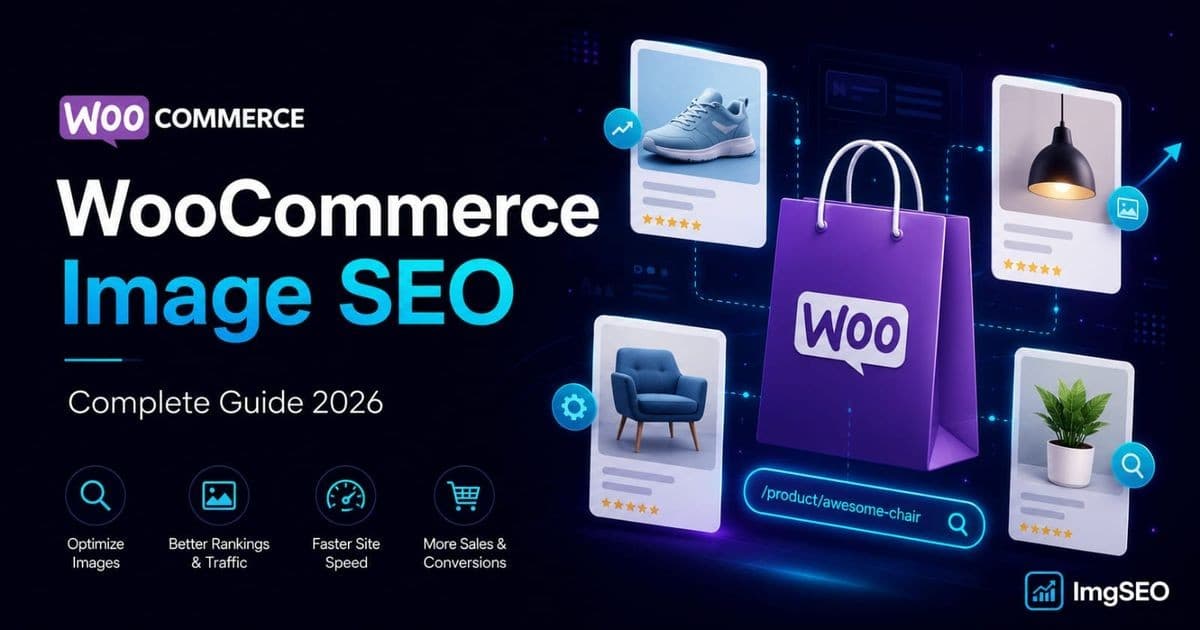
WooCommerce stores often accumulate images named IMG_4521.jpg, blank alt text fields, and unnecessarily large product photos. Those gaps make the media library harder to manage and can weaken accessibility, page context, and performance.
Image SEO on WooCommerce differs from a hosted marketplace because a self-hosted WordPress store gives merchants substantial control over media fields, source files, and delivery configuration. WordPress, themes, plugins, and CDNs can still sanitize, resize, re-encode, or transform images, so inspect the final page and asset rather than assuming the upload is unchanged.
This guide covers the WooCommerce image SEO workflow: accessible alt text, descriptive filenames, useful attachment and product context, efficient image delivery, and a maintainable process for larger catalogs.
Key Takeaways
- WooCommerce gives merchants direct control over image filenames and WordPress-managed fields such as attachment alt text, title, and description.
- Image performance can affect page experience and Core Web Vitals, but the right format, dimensions, and compression settings depend on how each image is displayed.
- Embedded EXIF/XMP is optional file-level information. WordPress image processing, re-encoding, optimization plugins, and CDN pipelines may remove it, so it should not be the foundation of a WooCommerce SEO workflow.
Why Image SEO Matters for WooCommerce Stores
Google Images Is a Shopping Channel
Google Images can surface product imagery for visually specific searches such as "brown leather bifold wallet" or "mid-century oak dining table." Crawlable product pages and indexable images make that discovery possible, although traffic varies by query, category, and competition.
Unlike paid search, image search traffic is free, intent-rich, and persistent. A product page that ranks in Google Images continues driving traffic long after you stopped thinking about it.
Image Delivery Affects Page Performance
Images are often a major part of page weight, and a hero or product image may be the Largest Contentful Paint (LCP) element. Measure representative product pages to identify the actual bottleneck; improving image delivery can support page experience, but it does not guarantee rankings or a fixed conversion increase.
Alt Text Supports Accessibility and Image Understanding
Alt text provides a text alternative for people who cannot see an informative image and can help search systems understand it in context. Write it for the image's purpose on the page; decorative images may appropriately use empty alt text.
WooCommerce Image Requirements and Best Practices
Recommended Image Dimensions
WooCommerce does not enforce a fixed image size. For product images, a 1:1 square crop at 1200×1200px is the current standard. This size works across all device sizes, supports zoom on product pages, and avoids pixelation in Google Shopping thumbnails.
The minimum acceptable size is 800×800px. Below that, images look soft on retina displays and perform worse in Google Lens visual search, which uses image clarity as a relevance signal.
WordPress generates several sizes automatically from your upload:
- Thumbnail (150×150px) — cart, widgets
- Medium (300×300px) — catalog grid pages
- Large (1024×1024px) — lightbox and zoom
- WooCommerce catalog image — configurable in Appearance → Customize → WooCommerce → Product Images
Set your catalog image to at least 600×600px. Anything smaller looks low-quality in grid listings and reduces click-through rate.
For a furniture store, a lifestyle shot at 1200×800px paired with a product-only shot at 1200×1200px covers both catalog and detail views. For a clothing store, consistent 1200×1500px portrait crops across the catalog look professional and improve perceived quality. For electronics, clean white-background shots at 1200×1200px match what Google Shopping expects.
Image Formats
- JPEG — use for all product photography. Best compression-to-quality ratio for photographs.
- PNG — use only when you need a transparent background: logos, icons, or composited product shots.
- WebP — recommended for page speed. WordPress 5.8+ accepts WebP uploads natively. Plugins like ShortPixel and Imagify convert JPEG to WebP on upload and serve the smaller file automatically.
Avoid TIFF or BMP — they are not optimized for web delivery.
File Size Optimization
Use a file-size budget based on the image's rendered dimensions, format, visual detail, and performance target. Measure representative pages rather than applying one universal kilobyte limit to every catalog or hero image.
For photographs, test lossy JPEG, WebP, or AVIF exports at several settings and inspect product details at the intended display and zoom sizes. Encoder quality scales and savings vary. Tools include Squoosh, TinyPNG, and ImgSEO.
How to Optimize Alt Text in WooCommerce
Where to Add Alt Text in WooCommerce
WooCommerce gives you two places to set alt text:
On the product edit page:
- Open the product in WooCommerce → Products
- Scroll to the Product Image section in the right sidebar, or scroll down to Product Gallery
- Click any image — the Media Library overlay opens
- Fill in the Alt Text field in the right panel
- Click Update to save, then update the product
In the Media Library:
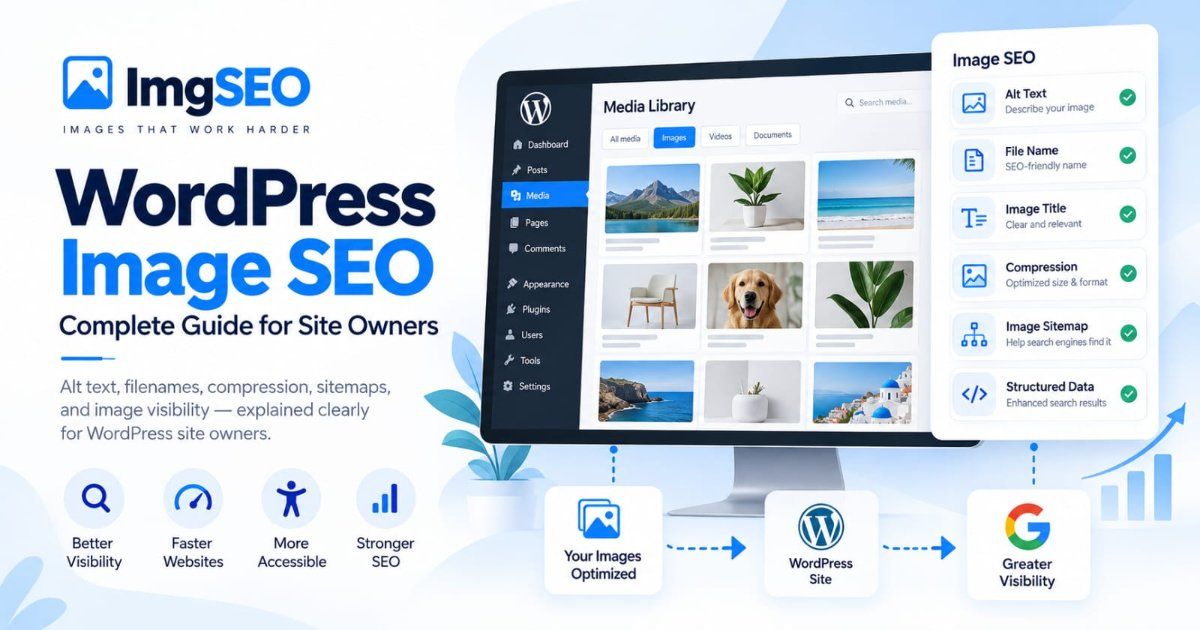
- Go to Media → Library
- Click any image
- Fill in the Alt Text field in the attachment detail panel
- Click Save
The Media Library alt text is the default across all uses of that image sitewide. Setting it there is the most reliable approach — it applies whether the image appears on a product page, a category page, or a blog post.
Writing Effective Alt Text
The formula that works consistently for product images:
[Product type] + [key descriptive features] + [brand or material if relevant]
Examples for a furniture store:
- ❌
img_product_042.jpg→ alt text blank - ✅ "Mid-century oak dining table with tapered legs, seats 6"
Examples for a clothing store:
- ❌ "product image"
- ✅ "Women's linen blazer in sage green, oversized fit, size medium"
Examples for an electronics store:
- ❌ "laptop"
- ✅ "Refurbished Dell XPS 13 laptop, 16GB RAM, 512GB SSD, silver"
Keep alt text under 125 characters. Do not keyword-stuff — "oak table oak furniture oak dining room oak wood" is not alt text, it is spam. Write for a person who cannot see the image and needs to understand what it shows. Google rewards accuracy, not keyword density.
Bulk Alt Text — The Problem
If you have 200 products with 4 images each, that is 800 alt text fields to write. Most store owners either skip it entirely or write the same generic text for every image — both are SEO failures.
ImgSEO can generate an Image SEO Bundle for eligible WooCommerce product images, while the WordPress plugin writes generated alt text, SEO image titles, and image descriptions only into empty WordPress-owned fields. Merchants should review generated output before relying on it.
WooCommerce Image Filenames and SEO
WooCommerce preserves the uploaded filename in the media URL, so descriptive naming is most reliable before an image enters the Media Library. Use lowercase words separated by hyphens and describe the product accurately without turning the filename into a keyword list.
This article treats filenames as one part of the broader WooCommerce workflow. For WordPress-specific naming formulas, variation-image examples, Media Library behavior, and safe handling of existing uploads, use the complete WooCommerce image filename guide. If the problem spans several platforms or an existing mixed catalog, start with the cross-platform filename repair guide.
Optional File-Level Metadata
EXIF and XMP can carry descriptive or rights-related information inside an exported image file. That information is separate from the WordPress attachment fields, product copy, filenames, links, and structured page context that form the dependable WooCommerce SEO workflow.
Do not assume embedded metadata will survive publication. WordPress/GD processing, resized derivatives, re-encoding, optimization plugins, and CDN pipelines may remove or replace it. Treat any retained file-level metadata as optional information, not as an additional ranking signal or a prerequisite for image SEO.
ImgSEO's web dashboard can include supported file-level metadata in downloadable exports, but the WooCommerce plugin does not depend on those writes. Its merchant-facing workflow stores generated SEO text in eligible WordPress-owned fields while preserving existing content.
Image Compression for WooCommerce Speed
Why Speed Matters for WooCommerce SEO
Core Web Vitals contribute to Google's page-experience systems. LCP measures when the largest visible content element renders, and that element is often a product or hero image on a commerce page. Use field and lab measurements to confirm the affected element and bottleneck.
Performance can affect user experience and conversion behavior, but the impact varies by audience, device, page, and business. Establish a baseline and compare real store metrics after changes rather than applying a universal revenue formula.
Compression Best Practices
Lossy vs lossless: Lossy compression is often appropriate for product photography, but the best format and quality setting depend on image detail and use. Lossless formats can be useful for graphics, text, or transparency when artifacts are unacceptable. Compare representative exports instead of relying on one percentage range.
WebP: WebP can reduce photographic file size compared with JPEG in many cases, but savings depend on the encoders and quality target. Current WordPress versions support WebP uploads; delivery behavior from optimization plugins depends on their configuration.
Performance budgets: Set budgets from rendered dimensions, device density, visual detail, and measured page performance. A catalog thumbnail, zoom image, and full-width hero have different requirements, so validate representative pages instead of enforcing universal file-size limits.
For a broader performance workflow, see How to Optimize Images for SEO and Website Speed.
WooCommerce Product Gallery SEO Tips
Your product gallery structure affects both SEO and conversion rate.
Make the primary image representative. Themes and product feeds commonly use a designated featured image, while search presentation depends on the page, feed, and search system. Choose a clean, sharp image that accurately represents the product and works well in the catalog grid.
Use multiple angles. Each image in your gallery is a separate indexing opportunity in Google Images. A bifold wallet with 6 images (front, back, interior, folded, lifestyle, close-up stitching) has 6 chances to appear in image search. A wallet with one image has one. Use: product-only on neutral background, alternate angle, detail or texture closeup, and lifestyle-in-context for every product.
Consistent sizing matters. A catalog grid where product images vary between portrait and landscape looks broken and reduces purchase confidence. Set a standard aspect ratio — 1:1 square is safest for WooCommerce — and apply it across the entire catalog. Inconsistent thumbnails signal poor quality.
Captions add context. Product image captions are rendered in HTML and crawled by Google. A caption like "Mid-century oak dining table — available in natural and walnut finish, 180cm length" adds keyword-relevant text that alt text alone does not. Use captions primarily on lifestyle images where the context matters most.
WooCommerce vs Shopify vs Etsy: Image SEO Differences
| Feature | WooCommerce | Shopify | Etsy | |---------|-------------|---------|------| | Keeps your filenames | ✅ Yes | ✅ Yes | ❌ Renames | | Auto alt text | ❌ No | ❌ No | ✅ AI (2025) | | Built-in compression | ❌ No | ✅ Basic | ✅ Basic | | Metadata embedding | ❌ No | ❌ No | ❌ No | | Full SEO control | ✅ Full | ✅ Full | ⚠️ Limited | | WebP delivery | ✅ Plugin required | ✅ Native | ✅ Native | | Bulk alt text tooling | ❌ Manual | ❌ Manual | ⚠️ AI auto-only |
The practical difference is control: WooCommerce lets merchants configure WordPress media fields, source files, plugins, and delivery layers. Hosted platforms manage more of that pipeline, and their processing can change over time, so platform-specific behavior should be verified rather than assumed.
For platform-specific SEO guides, read the complete Shopify image SEO guide and Etsy SEO guide.
WooCommerce Image SEO Checklist
Use this before you launch a new product or audit your existing catalog:
- Rename all images with descriptive, hyphenated keywords before upload
- Add alt text to every product image — primary image first, then all gallery images
- Compress images to a measured visual-quality and page-performance budget
- Use WebP format where your theme and host support it
- Verify that attachment alt text, title, description, and surrounding product context are accurate
- Use consistent image dimensions across your catalog — 1200×1200px square recommended
- Set catalog image size to at least 600×600px in WooCommerce → Appearance → Customize
- Enable lazy loading — built into WordPress 5.5+ by default; verify your theme does not disable it
- Create an image sitemap — Yoast SEO and Rank Math both include image URLs in sitemaps automatically
- Test with Google PageSpeed Insights — run mobile and desktop, target LCP under 2.5 seconds
Frequently Asked Questions
Does WooCommerce automatically add alt text?
No. WooCommerce and WordPress do not generate alt text for product images. Every image starts with a blank alt text field. You add it manually through the Media Library or product edit page, or use a tool like ImgSEO to generate and apply it in bulk.
What image size is best for WooCommerce products?
Choose dimensions and aspect ratios that fit your theme, zoom behavior, product feed, and device breakpoints. Test representative product pages and avoid serving substantially more pixels than each placement needs.
Does WooCommerce rename image files?
A standard WordPress upload normally retains a sanitized base filename in the original media URL, while also creating derivatives and duplicate suffixes when needed. Plugins and CDNs may transform delivered URLs, so verify the final public result.
How should I manage image SEO information in WooCommerce?
Use WordPress-managed attachment fields and product-page context as the durable source of truth: accurate alt text, a useful image title and description, descriptive filenames, and relevant product copy. Embedded EXIF/XMP is optional and may not survive image-processing or delivery pipelines.
What is the best image format for WooCommerce?
WebP is a useful option for photographic compression, while JPEG remains broadly compatible and PNG is useful when lossless graphics or transparency are required. Compare representative exports because file-size savings vary by image, encoder, and quality target.
How do I compress images in WooCommerce?
A practical workflow is to prepare efficient images before uploading, then verify what WordPress and the delivery stack serve. Tools include Squoosh, TinyPNG, and ImgSEO; WordPress optimization plugins can provide another processing layer. Set budgets from rendered dimensions and measured page performance rather than one universal file-size target.
Does image SEO help WooCommerce product discovery?
Image SEO helps search engines and users understand product imagery and can improve accessibility and page performance. Outcomes depend on the complete product page, crawlability, site performance, competition, and content quality; no checklist or individual field guarantees higher rankings.
How many product images should I have per product?
Use enough images to answer buyer questions without adding redundant page weight: for example, a clean product shot, alternate angles, a detail view, and a relevant lifestyle image. Each useful image can provide additional visual context, but image count alone does not guarantee indexing, conversions, or rankings.
Conclusion
WooCommerce gives merchants direct control over image files, media-library fields, and product-page context. That control is most useful when the workflow stays practical: name files descriptively before upload, write accurate alt text, preserve useful merchant content, compress and size images for their real display context, and keep product pages crawlable.
ImgSEO supports that workflow by generating filenames and SEO text for merchant review. In the WordPress plugin, eligible generated alt text, SEO image titles, and image descriptions are written to empty WordPress-owned fields; existing content is preserved. Embedded metadata is not required for the WooCommerce workflow and should not be treated as a ranking shortcut.