← ImgSEO Blog

Image Compression for E-commerce: The Complete Guide to Faster, Higher-Ranking Stores in 2026

22 min read
Image CompressionImage SEOPage SpeedCore Web VitalsE-commerceWebP
Image Compression for E-commerce: The Complete Guide to Faster, Higher-Ranking Stores in 2026

Fifty-three percent of mobile users abandon a site that takes more than three seconds to load. On e-commerce sites, that number is worse: the average product page ships 2–5MB of images to every visitor, and images account for 60–70% of total page weight. Every megabyte is borrowed time before a shopper gives up and buys from someone faster.

Image compression is not a nice-to-have. It is the single highest-leverage technical change available to most e-commerce stores. A correctly compressed image catalog can cut page weight by 80–95%, reduce Largest Contentful Paint by a second or more, improve Google rankings through Core Web Vitals, and lift conversion rates — all from changes that are invisible to the human eye.

This guide covers every layer of the topic: image formats and when to use each, the difference between lossy and lossless compression, per-platform targets, how to preserve SEO metadata during compression, and the exact workflow to optimize a full product catalog without touching quality.

Why Image Compression Matters for E-commerce SEO

Core Web Vitals and Google Ranking

Google officially incorporated Core Web Vitals into its ranking algorithm in May 2021. The three metrics that make up CWV are Largest Contentful Paint (LCP), Interaction to Next Paint (INP), and Cumulative Layout Shift (CLS). For e-commerce stores, LCP is almost always the problem — and images are almost always the cause.

LCP measures the time from navigation start to when the largest visible element finishes rendering. On a product page, that element is nearly always the main product image. A 2MB uncompressed JPEG loading over a typical mobile connection produces an LCP of 4–6 seconds. A correctly compressed 150KB WebP of the same image produces an LCP of under 1.5 seconds. Google's threshold for a "Good" LCP is 2.5 seconds. The difference between those two files is the difference between a good score and a failing one.

Core Web Vitals scores affect ranking directly. A store with consistently poor LCP across its product pages sits at a structural ranking disadvantage against competitors whose pages load fast — regardless of how well everything else is optimized.

The Conversion Math

The relationship between page speed and revenue is well-documented. Every 100ms increase in page load time is associated with approximately a 1% drop in conversion rate. At the other end: a 1-second improvement in load time has been linked to 7% higher conversions in e-commerce contexts. Walmart reported a 2% conversion increase for every 1-second improvement. Amazon found that every 100ms of latency cost them 1% in revenue.

These are not marginal effects. A store doing $50,000 per month in revenue that improves page load by 1.5 seconds through image compression could see a meaningful, measurable lift within weeks.

The Numbers

A typical unoptimized product page:

  • Main product image: 2–4MB (DSLR or phone photo, unedited)
  • Secondary images × 3–5: 1–2MB each = 3–10MB additional
  • Category thumbnail: 500KB–1MB
  • Total page image weight: 5–15MB

The same page after compression:

  • Main product image: 100–250KB
  • Secondary images: 100–200KB each
  • Thumbnails: 20–50KB
  • Total page image weight: under 500KB

That is a 90–97% reduction in image payload with no perceptible quality difference to the shopper.

Understanding Image Formats

Choosing the right format is the first compression decision. Different formats use fundamentally different algorithms, and using the wrong format for the content type negates any quality settings you apply.

JPEG

JPEG is the baseline format for photographs and has been since the mid-1990s. It uses lossy compression — it achieves small file sizes by discarding image data that is statistically less noticeable to the human visual system. The more you compress, the more data it discards, and eventually the artifacts become visible: blocky edges, smearing in shadows, color banding.

Best for: product photos, lifestyle shots, any photographic content with gradients and continuous tone. Avoid for: logos, graphics with text, images with sharp geometric edges. Quality setting: 80–85% is the standard target. At 80%, most JPEG artifacts are invisible unless you are zoomed in to 100%. Below 70%, artifacts become noticeable on product images; above 90%, file sizes grow significantly with minimal visible quality gain. Typical result: a 2000×2000px product photo at quality 85 = 150–350KB.

PNG

PNG uses lossless compression — it reduces file size without discarding any image data. What you put in, you get back exactly. The tradeoff is larger file sizes. A product photo saved as PNG is typically 3–5× larger than the same image saved as JPEG at quality 85.

Best for: logos, product graphics with transparent backgrounds, images with text overlays, screenshots, any graphic where exact pixel accuracy matters. Avoid for: photographs. A 2000×2000px product photo in PNG is often 2–5MB. Compression: PNG has its own lossless compression level (0–9 in most tools). Set it to maximum (9) — it does not affect quality, only encode/decode time.

WebP

WebP is Google's image format, released in 2010 and now supported by 95%+ of browsers globally. It produces files 25–35% smaller than JPEG at equivalent visual quality, supports both lossy and lossless compression modes, and handles transparency (replacing PNG in many cases). For new e-commerce stores, WebP should be the default export format.

Best for: everything. WebP outperforms both JPEG and PNG in compression efficiency. Quality setting: 80–85% for product photos. Lossless mode for graphics with text or transparency. Typical result: a 2000×2000px product photo at WebP quality 80 = 80–200KB (vs 150–350KB for the same JPEG). Browser support: Chrome, Firefox, Safari 14+, Edge, Opera — all versions since 2020 or earlier. If your analytics show meaningful traffic from Internet Explorer (under 1% globally in 2026), serve JPEG as a fallback via the <picture> element.

AVIF

AVIF is the newest major image format, derived from the AV1 video codec. At equivalent visual quality, AVIF files are approximately 50% smaller than JPEG and 20–30% smaller than WebP. Browser support has grown to roughly 80% globally as of 2026, with all major browsers supporting it except some older mobile versions.

Best for: stores targeting modern browsers, mobile-first sites, any context where maximum compression matters. Tradeoff: slower encode times, which makes it impractical for real-time generation but fine for pre-processed product catalogs. Recommendation: serve AVIF to supported browsers via the <picture> element, WebP as fallback, JPEG as final fallback. This is the future-proof setup. Typical result: a 2000×2000px product photo in AVIF = 60–150KB.

Lossy vs Lossless Compression

Every image format decision comes back to this distinction.

Lossy compression achieves smaller file sizes by permanently discarding image data. JPEG is the classic example; WebP in its default mode is lossy; AVIF is typically used in lossy mode. The data removed is selected by algorithms designed to match the weaknesses of human vision — we are less sensitive to color accuracy than luminance accuracy, less sensitive to high-frequency detail in high-motion areas of an image. At quality 80–85%, the discarded data is statistically imperceptible. Below quality 70, it becomes visible as blocking artifacts, color smearing, and loss of fine edge detail.

Lossless compression reorganizes and encodes image data more efficiently without removing any of it. PNG is lossless; WebP in lossless mode is lossless. The result is a file that decodes to exactly the original pixels. File sizes are larger than lossy equivalents, but quality is mathematically guaranteed.

For e-commerce product photography, lossy compression at 80–85% quality is the correct default. Human visitors are viewing images on screens at normal viewing distance, not zooming to 100% pixel level to audit compression artifacts. The file size savings — and the page speed and ranking benefits that follow — are substantial and real. The quality loss is invisible.

A practical test: export the same product photo at quality 70, 80, and 85. Open all three side by side at 100% on your screen. If you cannot identify which is which, quality 80 is your target.

Compression Targets by Platform

Different platforms handle images differently after you upload them. Your compression targets need to account for what the platform does (or does not do) downstream.

Shopify

Shopify automatically serves images in WebP format to browsers that support it, regardless of what format you upload. It also performs some automatic resizing for thumbnails and listing images. However, Shopify stores your original file and serves it as a baseline — if you upload a 4MB JPEG, Shopify's automatic optimization has to work harder, and some image delivery paths still serve closer to the original size.

Compress before uploading. Target under 500KB for main product images at 2000×2000px. For hero banners and lifestyle images: under 1MB. See the full Shopify image SEO guide for per-page-type guidance.

Etsy

Etsy performs minimal image processing. What you upload is largely what buyers see, with basic resizing for thumbnails. There is no automatic WebP conversion or aggressive compression. Upload quality directly affects listing performance.

Target under 1MB per image; ideally under 500KB for product photos. Recommended dimensions: 2000×2000px. For Etsy-specific SEO optimization alongside compression, see the Etsy image SEO guide.

WooCommerce

WooCommerce and WordPress apply no automatic compression by default. The image you upload is stored at full size and served as-is unless you install a compression plugin. This makes WooCommerce the platform where compression has the most immediate impact — and the most room to improve.

Targets: thumbnails under 50KB, product images under 300KB, hero/lifestyle images under 500KB. See WooCommerce image SEO in 2026 for the plugin and workflow recommendations.

Amazon

Amazon's CDN handles delivery optimization and serves resized variants for different contexts (thumbnail, zoom, full). However, Amazon does re-compress source images on upload, and the quality of that transcoding depends partly on the quality of your source file.

Targets: main product image under 500KB at 2000×2000px; secondary images under 1MB each. Amazon strips EXIF/XMP metadata on upload — see the Amazon image SEO guide and the metadata section below for how to handle this.

How to Compress Images Without Losing Quality

The Golden Rule

Compress to the point where you cannot see the difference. This is subjective and product-specific — a jewelry photograph with fine metallic detail needs a higher quality setting than a product photo of a solid-color silicone phone case. The goal is the lowest file size at which the compressed image is visually indistinguishable from the original at normal viewing distance.

Step-by-Step Process

1. Resize to correct dimensions first. Compression is not a substitute for correct dimensions. A 4000×4000px image exported at quality 60 is still a large file and loads slower than a 1200×1200px image at quality 85. Resize to your target dimensions before compressing. Do not skip this step.

2. Choose the right format. Use WebP for all new product photography. Use PNG only if the image has a transparent background that will be shown on a non-white page background. Use JPEG if you are working within a system that does not support WebP yet.

3. Set quality to 80–85% for product photos. Do not export at 100% quality. JPEG and WebP at 100% quality are significantly larger files than at 90%, with no perceptible quality gain at normal viewing size. For most product images, 82% quality is a reasonable default.

4. Compare original versus compressed. Before processing your full catalog, test your quality setting on three to five representative images — a clean white-background product shot, a lifestyle photo with a person, and a detail/close-up. View them at the size they will actually appear on your site. If you cannot tell the difference, the setting is correct.

5. Check the file size. Target under 200KB for standard product images at 1200×1200px. Target under 300KB for 2000×2000px product images. If you are above these targets, reduce quality by 5 points and test again.

Batch Compression

Processing a product catalog of 200, 500, or 2,000 images manually is not a realistic workflow. The options:

  • Desktop tools: ImageOptim (Mac), RIOT (Windows), Squoosh (browser-based, one image at a time) work for small catalogs but do not scale.
  • Command-line tools: cwebp, ffmpeg, and ImageMagick support batch processing via scripts. Effective but requires technical setup.
  • Plugins: ShortPixel, Imagify, and EWWW Image Optimizer handle batch compression in WooCommerce/WordPress automatically.
  • ImgSEO's bulk optimizer: compresses, converts to WebP, resizes, and embeds SEO metadata in a single pass — designed for e-commerce catalogs where you need compression and metadata together.

Image Dimensions and Resizing

Why Dimensions Matter as Much as Compression

A 4000×4000px image at quality 60 is still 800KB–1.2MB. Displayed at 400×400px on a product listing page, that image carries 100× more pixels than the browser needs to render it. The browser downloads all of them anyway.

Resize images to the largest size at which they will actually be displayed — plus a 2× multiplier for retina displays. A product image displayed at 600px wide on a desktop needs a 1200px source image for retina quality. Serving 4000px for that same slot wastes 11× the bandwidth.

Recommended Dimensions by Use Case

| Use Case | Recommended Dimensions | Max File Size | |---|---|---| | Product main image | 1200 × 1200px | 300KB | | Product thumbnail | 400 × 400px | 50KB | | Lifestyle / hero image | 1920 × 1080px | 500KB | | Blog post header | 1200 × 630px | 200KB | | Category banner | 1600 × 400px | 300KB | | Secondary product image | 1200 × 1200px | 250KB | | Infographic | 1000 × 1500px | 400KB |

For Amazon and Etsy, which use images for zoom features, maintain a 2000×2000px version specifically for those platforms while using the smaller sizes everywhere else.

WebP Conversion: Should You Switch?

The Case for WebP

In 2026, the case for WebP as the default e-commerce image format is straightforward. Browser support is at 95%+ globally. The compression advantage over JPEG — 25–35% smaller at equivalent quality — compounds across a product catalog of hundreds or thousands of images. A store with 500 product images averaging 250KB in JPEG saves roughly 31MB in total page weight by switching to WebP at equivalent quality. That is not a rounding error in terms of bandwidth cost, CDN delivery speed, and Google PageSpeed scores.

WebP also replaces PNG for images that need transparency. A product shot with a transparent background saved as PNG is typically 600KB–2MB. The same image as WebP lossless is 200–500KB; WebP lossy with transparency is often under 100KB.

How to Convert Existing Catalogs

  • ImgSEO: converts and compresses in bulk, embeds metadata, outputs WebP ready to upload
  • Squoosh (squoosh.app): browser-based, excellent visual quality comparison tool, one image at a time
  • CloudConvert: batch conversion via API or UI
  • ImageMagick: mogrify -format webp -quality 82 *.jpg converts all JPEGs in a folder
  • ShortPixel / Imagify: WordPress/WooCommerce plugins that auto-convert and serve WebP

The <picture> Element for Fallback

If your platform serves images directly via <img> tags, use the <picture> element to serve WebP with a JPEG fallback for older browsers:

<picture>
  <source srcset="product-image.webp" type="image/webp" />
  <img src="product-image.jpg" alt="Leather bifold wallet in brown — front view" width="1200" height="1200" />
</picture>

Modern e-commerce platforms (Shopify, most WordPress themes) handle this automatically. If you are on a custom build or older platform, this pattern ensures no visitor receives a broken image.

Compression and Metadata: The Hidden Connection

This is the issue that catches most sellers off guard. Standard compression tools — desktop apps, online converters, WordPress plugins — strip EXIF and XMP metadata from images during processing. The file size goes down; the embedded SEO data goes with it.

Metadata fields like the image title, description, keywords, and copyright are embedded in the file itself. When a compression tool processes the image, it reads the pixel data, recompresses it, and writes a new file. By default, most tools do not carry the metadata through to the output.

The consequence: you compress your product images, gaining the page speed benefits, but losing the alt text, keyword, and description fields that Google reads for image SEO. You traded one optimization for another.

The correct approach is to either add metadata after compression (not before), or use a tool that preserves or writes metadata during compression. For a detailed breakdown of which metadata fields matter and how search engines read them, see what EXIF metadata is and why it matters for SEO.

ImgSEO compresses and embeds metadata in a single processing step — the output file is both smaller and fully annotated. This is particularly important for Amazon and Etsy sellers, where the upload is a one-way door: the platform strips metadata on ingest, so your only window to ensure Google reads the metadata is before you upload.

Platform-Specific Compression Tips

Shopify

Shopify's CDN converts images to WebP automatically for supported browsers, so any image you upload benefits from modern format delivery. The platform also generates multiple sizes for thumbnails, collection pages, and product pages from your source image.

This does not mean you should skip pre-upload compression. Shopify's automatic resizing is adequate, but the quality setting it applies is a middle-ground value — not tuned to your specific product photography. Uploading a well-compressed source file gives Shopify better input material, speeds up admin page loads in Seller Central, and ensures the original file stored in your media library is a reasonable size. See the Shopify image SEO guide for format and alt text recommendations alongside compression.

Etsy

Etsy does not compress aggressively. The resizing Etsy applies is primarily for thumbnails; listing pages serve images close to the dimensions you upload. What you upload is effectively what buyers see and what Google indexes from the page.

Always compress before uploading to Etsy. A 4MB lifestyle shot uploaded to an Etsy listing slows the page and increases bounce rate — and Etsy's page speed directly affects where your listing appears in search results. See the Etsy image SEO guide for Etsy-specific image optimization alongside compression.

WooCommerce

WooCommerce stores originals in /wp-content/uploads/ and generates additional sizes as defined in your theme. Without a compression plugin or pre-upload workflow, originals are served at full size to any visitor or crawler requesting them.

Options:

  • Pre-upload compression with ImgSEO: compress, convert to WebP, and embed metadata before the file enters WordPress. The cleanest approach for new product additions.
  • ShortPixel: retroactively compresses existing media library images and serves WebP automatically. Integrates directly with WooCommerce product image galleries.
  • Imagify: similar to ShortPixel, with a slightly different quality optimization algorithm. Both have free tiers.
  • EWWW Image Optimizer: fully open source, runs on your server, no per-image fees.

For a full WooCommerce image optimization workflow, see WooCommerce image SEO 2026.

Image Compression Checklist

Work through this list for every product image before it goes live:

  1. Resize to correct dimensions — do not skip this; compression cannot compensate for oversized images
  2. Choose WebP format for all new uploads; JPEG only for platforms or systems that do not support WebP
  3. Set quality to 80–85% — not 90–100%, which inflates file sizes without visible benefit
  4. Target under 200KB for standard 1200×1200px product images
  5. Target under 500KB for hero images, lifestyle shots, and full-size product images at 2000×2000px
  6. Add metadata before or after compression — not during, unless your tool explicitly preserves it
  7. Test with Google PageSpeed Insights after uploading to confirm LCP improvement
  8. Enable lazy loading for images below the fold (loading="lazy" on <img> tags)
  9. Enable browser caching for images — most CDNs and hosting platforms do this via cache headers; verify it is active
  10. Use a CDN for global stores — delivery speed from a CDN node near the visitor matters as much as file size for perceived load time

Before and After: Real Compression Results

These figures are representative of actual product catalog compression results using the formats and quality settings described in this guide:

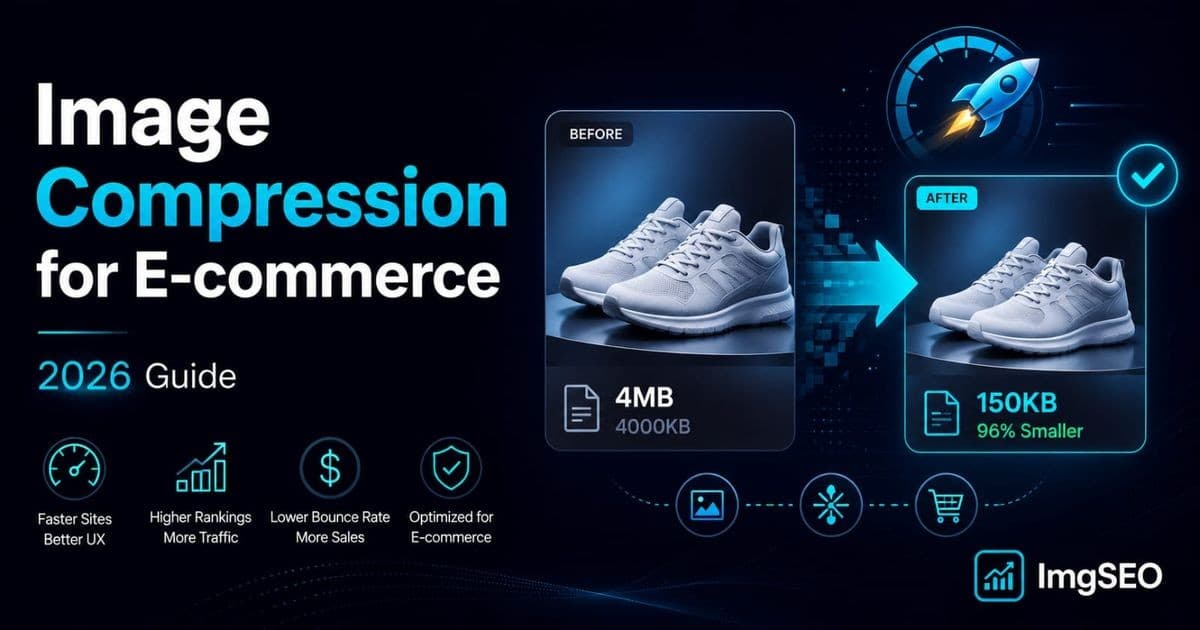
| Image Type | Before Compression | After Compression | Reduction | |---|---|---|---| | Product JPEG, 4000 × 4000px | 4.2MB | 180KB (WebP, q82) | −96% | | Lifestyle PNG, 1920 × 1080px | 2.8MB | 210KB (WebP lossy) | −93% | | Logo PNG, 500 × 500px | 450KB | 45KB (WebP lossless) | −90% | | Product JPEG, 2000 × 2000px | 1.1MB | 145KB (JPEG, q85) | −87% | | Category banner JPEG, 1600 × 400px | 890KB | 95KB (WebP, q80) | −89% |

Across a catalog of 500 product images averaging 1.5MB each, these compression ratios translate to a reduction from 750MB total to roughly 50–75MB. At scale, that affects hosting bandwidth, CDN costs, and the time Google's crawler spends on your site — all of which feed back into ranking.

Frequently Asked Questions

Does image compression affect image quality?

At quality settings of 80–85% for lossy compression, the quality difference is invisible under normal viewing conditions. The compression algorithm discards image data that human vision is least sensitive to — subtle color transitions, fine detail in shadow areas, high-frequency texture in backgrounds. Side-by-side comparison at normal screen resolution between an original and an 82%-quality WebP is indistinguishable for the vast majority of product images. Below quality 70, artifacts become noticeable in high-detail areas.

What is the best image format for e-commerce in 2026?

WebP is the recommended default. It is 25–35% smaller than JPEG at equivalent visual quality, supports transparency, and is supported by 95%+ of browsers. For stores willing to implement a <picture> element with fallbacks, serving AVIF to supported browsers and WebP as fallback gives maximum compression with full coverage.

How much should I compress product images?

For JPEG and WebP lossy, quality 80–85% is the standard target. For file size targets: under 200KB for standard product images at 1200×1200px, under 300KB for 2000×2000px product images, under 50KB for thumbnails. These are guidelines, not hard limits — test on your specific images and find the lowest quality setting at which you cannot see the difference.

Does image compression improve SEO?

Yes, directly. Image compression reduces page weight, which improves Largest Contentful Paint. Google uses LCP as a ranking factor through Core Web Vitals. Faster LCP also reduces bounce rate and increases time on site — both of which are behavioral signals that influence ranking. The SEO benefit of compression is measurable and well-documented.

Will compressing images remove my metadata?

Most compression tools strip EXIF and XMP metadata by default. This is a significant problem for image SEO — the fields Google uses to understand what an image shows are lost in the compression step. Verify that your compression tool has an option to preserve metadata, or add metadata after compression. ImgSEO compresses and writes SEO metadata in a single pass, avoiding the issue entirely.

What is the best image size for e-commerce product pages?

For product main images: 1200×1200px displayed size, 2000×2000px for platforms that support zoom (Amazon, Etsy). For thumbnails: 400×400px. For hero images: 1920×1080px. These are source dimensions — your site will serve responsive variants at smaller sizes for mobile, but the source must be large enough to look sharp on retina displays at the maximum display size.

Should I use WebP for my online store?

Yes, in 2026 there is no compelling reason not to. Browser support is at 95%+, the compression advantage is significant, and all major e-commerce platforms either support WebP natively or handle the fallback automatically. The only scenario where JPEG is still the right call is when you are uploading to a legacy platform or system with no WebP support and no way to implement the <picture> element.

How do I compress images in bulk for my store?

For small catalogs (under 50 images): Squoosh or ImageOptim work well. For medium catalogs (50–500 images): ImgSEO's bulk optimizer processes images in batches, converts to WebP, adds SEO metadata, and outputs files ready for upload. For large catalogs on WooCommerce: ShortPixel or Imagify retroactively compress existing media libraries. For developer setups: ImageMagick scripts or a serverless image processing pipeline.

Conclusion

Image compression is not a one-time cleanup task — it is infrastructure. Every product you add to your store is an opportunity to do it right before it goes live, or a debt to pay later when a Google PageSpeed audit flags your LCP as poor. The compound effect of 500 well-compressed images versus 500 unoptimized ones is not a minor SEO consideration. It is a structural advantage that persists across every page on your site, every crawl Google runs, and every mobile visitor who does not bounce because your page loaded in under two seconds instead of five.

The workflow that captures every benefit in a single pass: resize to correct dimensions, export as WebP at quality 82, embed EXIF/XMP metadata with title, description, and keywords, and upload. On platforms like Amazon and Etsy where you have one chance before the platform strips the metadata, that pre-upload step is not optional — it is the entire SEO strategy for those channels.

ImgSEO handles all of this in one step — compression, WebP conversion, and metadata embedding together. Upload your product images and download files that are fast enough to rank, optimized enough to load, and annotated well enough for Google to understand. Try it free on your first 30 images.

Share:
I

ImgSEO Team

Image SEO Specialist at ImgSEO

Helping e-commerce sellers on Shopify, Etsy & WooCommerce rank higher with optimized product images.

Optimize your product images with AI

Generate SEO titles, alt text, tags, filenames, and metadata in seconds.

📬

Get image SEO tips in your inbox

Join 1,000+ e-commerce sellers getting weekly tips on image SEO, Etsy & Shopify optimization.

No spam. Unsubscribe anytime.

Related Articles