
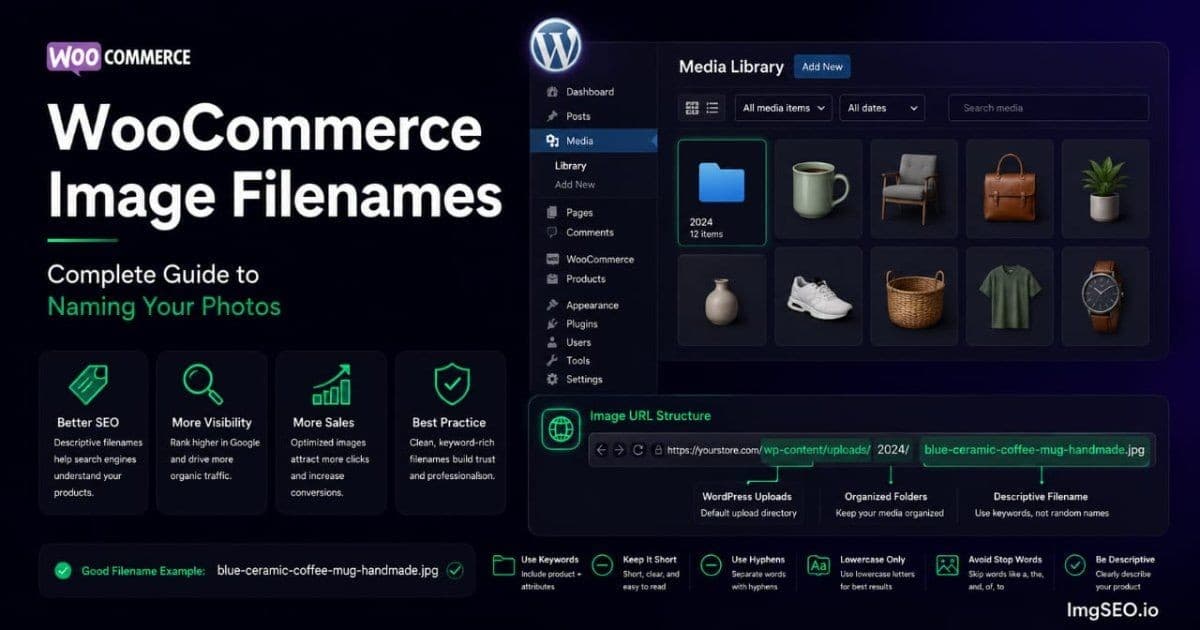
Self-hosted WooCommerce gives merchants direct control over source-image naming, and most stores benefit from establishing a consistent filename workflow before upload.
Unlike hosted marketplaces that may rename or transform uploads, a standard WordPress installation usually retains the sanitized base filename in the original media URL. WordPress still creates derivative sizes, and plugins or CDNs may transform delivered URLs, so the public result should be checked rather than assumed.
A file named organic-cotton-tshirt-women-oversized-white.jpg uploaded to your WooCommerce store is served at:
yourstore.com/wp-content/uploads/2026/06/organic-cotton-tshirt-women-oversized-white.jpg
The URL commonly retains that sanitized base name, but site configuration and delivery layers can change the public result.
Key Takeaways
- WooCommerce normally retains a sanitized base filename in the original media URL, while WordPress also generates derivative image files.
- Attachment records are part of the Media Library, but attachment pages are often redirected or disabled; optimize the actual image URL and product context rather than treating attachment pages as an extra ranking tactic.
- Renaming an image already in the media library requires careful reference updates; getting the filename right before upload avoids that rework.
This guide owns the WooCommerce-specific implementation: naming formulas, WordPress Media Library behavior, variation images, and safe handling of existing uploads. For the complete workflow around alt text, page context, and performance, use the WooCommerce image SEO guide.
Why WooCommerce Image Filenames Matter
Source Naming and WordPress Processing
A standard WordPress upload commonly uses a sanitized version of the source filename for the original media URL. WordPress can add duplicate suffixes and generate derivative names; optimization plugins and CDNs may transform the delivered URL.
That makes a pre-upload naming policy useful for WooCommerce, but it does not make filenames permanent or guarantee indexing or rankings. Inspect the final public URL and preserve redirects when an established asset moves.
The WordPress Media Library Factor
Every WordPress upload creates a Media Library attachment record and one or more files. Attachment-page behavior varies by theme and SEO configuration. Treat the record as catalog infrastructure, not as a second page that automatically creates SEO value.
Why WooCommerce Gives You Implementation Control
Self-hosted WooCommerce lets you choose source filenames and configure how WordPress and delivery layers process them. This guide focuses on that implementation workflow.
The WooCommerce Filename Formula
The Core Structure
[material]-[product-type]-[style]-[color]-[occasion].jpg
Applied to a real WooCommerce product: hand-poured-soy-candle-vanilla-8oz-amber-jar.jpg
This structure covers the keyword dimensions buyers actually search: what the product is made of, what it is, how it looks, and the context it belongs to. Together these elements address multiple search intents in a single URL.
Why This Order Matters
Lead with the product type and include only accurate attributes that help distinguish the image. The goal is a readable, maintainable name, not a ranking formula.
Consistent ordering also makes your Media Library scannable and manageable: all ceramic products group together alphabetically, all cotton products group together, all bamboo products group together — which helps with catalog management as your product range grows.
WordPress-Specific Format Rules
- Hyphens only — WordPress converts spaces to hyphens automatically on upload, but start with hyphens to ensure consistency and avoid any encoding artifacts
- All lowercase — WordPress lowercases filenames automatically, but setting this habit before upload removes any ambiguity
- No special characters — parentheses, ampersands, and accented characters get stripped or percent-encoded by WordPress; avoid them entirely
- Concise and readable — include only the product type and genuinely useful distinguishing attributes
Filename Examples by WooCommerce Category
Useful filenames are specific enough to describe the pictured product and concise enough to remain readable in a URL.
Handmade and Craft Products
handwoven-cotton-basket-natural-medium-storage.jpg
hand-poured-soy-candle-vanilla-8oz-amber-jar.jpg
wheel-thrown-stoneware-mug-speckled-glaze-12oz.jpg
macrame-wall-hanging-natural-cotton-bohemian.jpg
Digital and Print-on-Demand
vintage-sunset-graphic-tshirt-navy-unisex.jpg
botanical-line-art-print-a4-minimalist-black.jpg
retro-mountain-hoodie-oversized-sage-cotton.jpg
abstract-watercolor-poster-blush-pink-8x10.jpg
Health and Wellness
organic-elderberry-syrup-4oz-immune-support.jpg
bamboo-yoga-mat-eco-friendly-6mm-non-slip.jpg
glass-water-bottle-borosilicate-18oz-bamboo-lid.jpg
herbal-sleep-tea-chamomile-lavender-20-bags.jpg
Home and Garden
ceramic-planter-pot-handmade-white-6inch.jpg
rattan-storage-basket-woven-natural-large.jpg
linen-throw-pillow-cover-natural-18x18-zipper.jpg
terracotta-succulent-pot-set-3-drainage-holes.jpg
Electronics and Accessories
bamboo-phone-stand-adjustable-desk-eco.jpg
wireless-earbuds-charging-case-black-bluetooth.jpg
braided-usb-c-cable-6ft-fast-charge-nylon.jpg
laptop-sleeve-13inch-felt-gray-water-resistant.jpg
Notice that every example starts with a clear product description and adds only relevant visible attributes. For guidance on writing alt text that complements these filenames, see how to write alt text for every product type.
WordPress Media Library Filename Behavior
What Happens on Upload
When you upload an image to the WordPress Media Library, WordPress:
- Sanitizes the filename according to WordPress rules
- May replace spaces or unsupported characters
- Preserves the resulting base name for the original upload
- Appends a numeric suffix if a file with the same name already exists
Steps 1 through 3 happen silently. If you upload Product Photo (Final).jpg, WordPress saves it as product-photo-final.jpg — which is still a meaningless filename, just auto-cleaned. The conversion does not make a bad filename good. You have to supply the keywords before uploading.
The duplicate suffix is one reason unique, descriptive filenames help catalog management. Repeated uploads of product-photo.jpg can produce numbered variants that are difficult for merchants to distinguish in the Media Library.
Attachment Records and Public URLs
WordPress creates an attachment record for each Media Library item. Whether a separate attachment page remains public and indexable depends on the theme and SEO configuration; many stores redirect those URLs to avoid thin pages.
A descriptive filename still helps keep the media library and image URL understandable. It should not be justified as a way to manufacture an additional ranking page.
Renaming Images Already in Your Media Library
WordPress does not provide a built-in filename rename tool. If an image is already in your Media Library with a poor filename, the process to fix it is:
- Download the image from the Media Library
- Rename the file on your local computer with the descriptive name
- Upload the renamed file back to the Media Library
- Update every product, page, or post that referenced the old image URL to point to the new one
- Preserve the old URL or add an appropriate redirect when an established indexed asset moves
On WooCommerce, changing an established media URL requires checking product content, generated sizes, caches, feeds, and other references. A purpose-built tool may automate parts of that work, but its behavior and redirects must be verified.
The practical conclusion is to establish a naming policy before upload. For existing assets, weigh any readability benefit against migration risk and update only with a tested reference and redirect plan.
Filename Mistakes That Hurt WooCommerce SEO
Mistake 1: WordPress Auto-Generated Names
image-1234567890.jpg, screenshot-2026-06-15.jpg, IMG_4521.jpg
These are uninformative URLs in your WordPress installation. Naming files descriptively before upload makes the media catalog easier to understand and avoids later URL changes.
Mistake 2: Spaces and Special Characters in Original Files
"Product Photo Final (2).jpg" becomes product-photo-final-2.jpg after WordPress auto-converts it. The conversion cleans the formatting but cannot manufacture keywords that were not there. Rename the file to organic-cotton-tshirt-women-oversized-white.jpg before uploading — WordPress cannot do that part for you.
Mistake 3: Theme and Plugin Default Names
Bulk product import plugins frequently generate filenames like product-import-0042.jpg or wc-product-image-183.jpg. Always check the filenames created by your import tool and rename the batch before uploading. The import may be automated; the filename decision has to be yours.
Mistake 4: Duplicate Generic Filenames
Multiple uploads of product-photo.jpg trigger WordPress's auto-suffix system: product-photo-1.jpg, product-photo-2.jpg, product-photo-3.jpg. Each is a distinct URL that tells Google nothing about what the image depicts. Unique, descriptive filenames per product eliminate this problem entirely.
Mistake 5: Assuming the Media Library Display Title Renames the File
Changing an attachment title in WordPress does not rename the underlying image file or its URL. Confirm whether a tool changes the physical file, updates every reference, and creates any necessary redirect before using it on existing media.
How to Rename Images Before Uploading to WooCommerce
Method 1: Manual Renaming
On Windows: right-click the file, choose Rename, type the new name, press Enter. On Mac: single-click the filename, type the new name, press Return.
Time: 10 to 15 seconds per file. Practical for stores with 10 to 20 products. For larger catalogs or ongoing product photography workflows, manual renaming becomes the bottleneck.
Method 2: Bulk Renaming Tools
Windows: PowerToys PowerRename supports regex-based batch renaming — useful for stripping camera prefixes, standardizing separators, or adding product category prefixes to sets of related images.
Mac: Automator's Rename Finder Items action handles sequential numbering and prefix/suffix additions. The built-in Finder batch rename (select multiple files, right-click, Rename) covers basic sequential renaming.
The limitation applies here as it does on every platform: batch renaming tools apply consistent rules, not unique descriptive names. They cannot look at a photo of a ceramic planter and generate ceramic-planter-pot-handmade-white-6inch.jpg. That decision — the specific keywords that describe what the image actually shows — requires either manual work or AI assistance.
Method 3: AI-Powered Renaming
For WooCommerce catalogs, choosing useful filenames before upload avoids the risk and reference updates involved in replacing established media URLs. ImgSEO analyzes each product image visually and generates a descriptive, SEO-optimized filename from the image content. Upload your product photos in batch and download them with optimized filenames already applied — ready for your WordPress Media Library upload.
WordPress normally retains a sanitized base name for the original upload, but changing an established file URL requires care. A consistent pre-upload naming workflow reduces that rework.
WooCommerce-Specific SEO Plugin Considerations
Yoast SEO and Filename Interaction
SEO plugins may include image-related checks in their content analysis, but a plugin score is not a search-ranking guarantee. Use descriptive filenames because they improve clarity and maintainability, then evaluate the complete page.
For a complete walkthrough of WooCommerce image SEO setup with Yoast, see the WooCommerce image SEO guide.
RankMath and Filename Interaction
Rank Math also provides content-analysis guidance. Treat those recommendations as editorial prompts rather than evidence that a particular filename formula will improve rankings.
Filenames and the WordPress Image Sitemap
Depending on configuration, an SEO plugin may include image information in XML sitemaps or page entries. Sitemaps can support discovery, but they do not guarantee indexing, and a descriptive filename does not strengthen a sitemap entry by itself.
Filenames for Product Variations
The Variation Strategy in WooCommerce
WooCommerce's variation system allows each product variation to have its own image. Those variation images should have distinct filenames that reflect the specific attribute they depict.
For a linen dress available in three colors:
linen-dress-women-sage-green.jpg        ← sage green variant
linen-dress-women-dusty-blue.jpg        ← dusty blue variant
linen-dress-women-terracotta.jpg        ← terracotta variant
Each variation can use a distinct media URL that accurately describes the depicted color or finish. Attachment-page behavior depends on site configuration, and distinct filenames do not guarantee rankings.
Why This Matters for WooCommerce Specifically
Variation images in WooCommerce are standard Media Library items with their own media files. Distinct filenames can make color or finish variants easier to identify, but public attachment-page behavior varies and separate files do not guarantee search visibility.
Combining Filenames with WooCommerce's Other SEO Layers
A durable WooCommerce image workflow combines three things:
- Filename - an accurate, readable source name established before upload where possible
- WordPress-managed fields - attachment alt text, title, and description maintained without overwriting useful merchant content
- Product-page context and delivery - relevant product copy, crawlable markup, appropriate dimensions, and efficient image delivery
Embedded EXIF/XMP can carry optional file-level information, but WordPress image processing, re-encoding, optimization plugins, and CDNs may remove it. It is not required for the filename workflow or a dependable additional ranking layer.
The Bottom Line
WooCommerce on self-hosted WordPress gives merchants meaningful control over source filenames and media workflows. WordPress may sanitize names, create derivative files, and add duplicate suffixes, while plugins or CDNs may transform delivered URLs.
That control is wasted if you upload camera default names.
Use a concise formula based on product type and genuinely visible attributes, separated by hyphens and written in lowercase. The goal is an accurate, maintainable filename - not a keyword-stuffed promise of rankings.
For images already in your Media Library with poor filenames, the re-upload path is more involved than on Shopify — plan a refresh starting with your highest-traffic products. For everything you upload going forward, establish descriptive filenames before the first upload so you never need to revisit them.
Combine filenames with accurate alt text, useful attachment fields, and relevant product-page context. ImgSEO generates descriptive filename suggestions and SEO text for merchant review; its WooCommerce plugin preserves existing content and does not physically rename files.
For more on correcting filename problems across an existing catalog, see how to fix bad image filenames for SEO.