
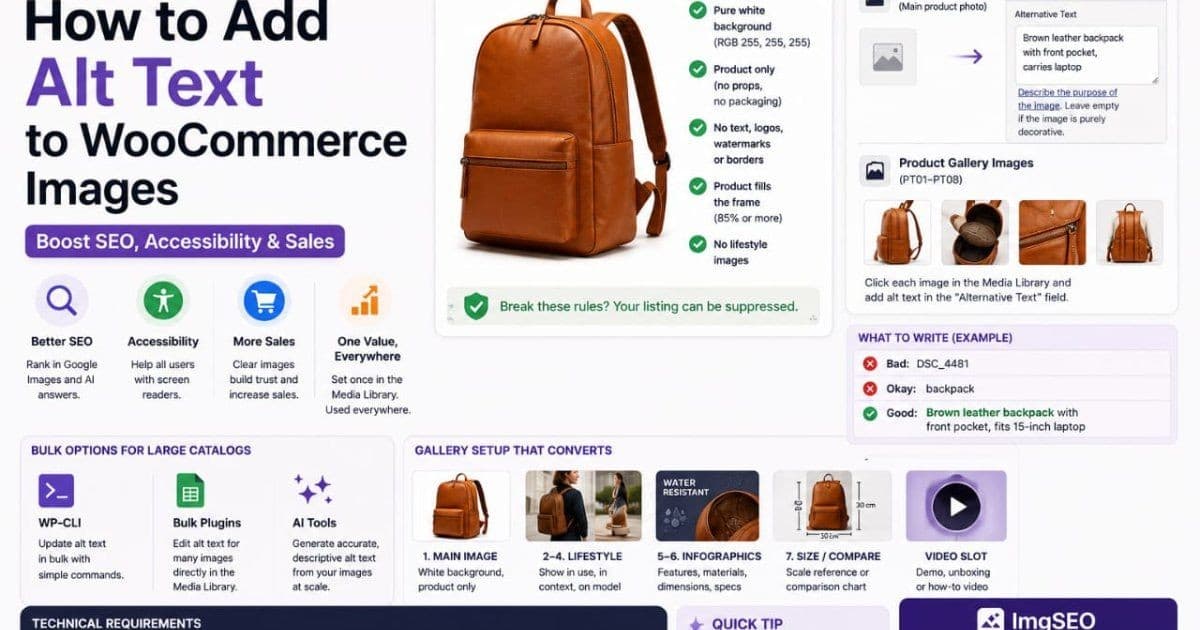
Alt text in WooCommerce trips up more store owners than almost any other image SEO task. Not because it's hard. It's because WordPress shows you three different places to add it — and never says which one the product page uses.
This guide clears that up. You'll learn which field WooCommerce renders and how to add alt text to a single product. Then you'll fix it across a whole catalog without touching every image by hand.
Key Takeaways
- WooCommerce reads alt text from one place: the image's Media Library field, stored as
_wp_attachment_image_alt. The "featured image" and "product gallery" boxes have no alt fields of their own.- Content images added through Gutenberg or a page builder are the exception — they can store alt inline, separate from the Media Library value.
- For catalogs over roughly 50 products, editing each attachment by hand is too slow. Use WP-CLI, a bulk plugin, or an AI tool to scale.
Which alt text field does WooCommerce actually use?
WooCommerce renders one alt text value: the one stored on the image in your Media Library. WordPress keeps it in a field called _wp_attachment_image_alt, attached to the image, not the product. The featured image and product gallery boxes only point to images — they hold no alt text of their own.
Here's where the confusion starts. Open a product and you see two image boxes: Product image (the featured image) and Product gallery. Both look like they might store alt text. Neither does.
When you click an image in either box, WordPress opens that image's attachment details. The Alternative Text field you edit there is the Media Library alt — the single value WooCommerce uses everywhere that image appears.
So why care about the distinction? Because one image can appear in many places at once. The product page, a category grid, a related-products widget, a Google Images result — all of them pull the same Media Library alt. Fix it once, and every placement improves together.
The exception is content images. Drop an image into the long description with the block editor or a page builder, and that copy can carry its own alt attribute. More on that below.
New to the concept itself? Start with our complete guide to alt text, then come back here for the WooCommerce specifics.
How to add alt text to a single product
To add alt text to a WooCommerce product, edit each image's Alternative Text field in the Media Library. You reach it straight from the featured image and gallery boxes. Set it once per image and it applies everywhere WooCommerce shows that photo.
Featured image (the main product photo):
- Open the product under Products in your WordPress admin.
- In the Product image box, click Set product image or the existing thumbnail.
- Select the image, or click it in the Media Library grid.
- Find the Alternative Text field in the right-hand Attachment details panel.
- Type your alt text, then click Set product image.
Gallery images:
- In the Product gallery box, click Add product gallery images or an existing thumbnail.
- Click each image in the Media Library.
- Fill in its Alternative Text field on the right.
- Insert or update the gallery.
The field saves as soon as you move focus away from it. You don't need a separate save step for the alt text itself.
What to actually write
Describe what the photo shows, in the words a buyer would type into search. The formula that holds up:
[color] [material] [product type] [distinguishing feature], [context if useful]
Here's the same product image written four ways:
- Filename left as alt:
DSC_4471 - Generic:
candle - Keyword-stuffed:
soy candle cheap soy candle best candle buy candle - Good:
Amber soy candle in frosted glass jar with wooden wick, lavender scent
The last one earns Google Images visibility because it matches real searches. The others don't. For a deeper walkthrough of the writing side, see how to write alt text for product images.
How to add alt text in bulk
For hundreds of existing products, editing images one at a time isn't realistic. Three approaches scale. Use the Media Library grid for a fast manual pass, WP-CLI for a scripted update, or a bulk plugin for full automation. Each writes to the same _wp_attachment_image_alt field.
Media Library, list view
Go to Media and switch to list view. Some setups add a Bulk Actions option or a "missing alt text" filter through an SEO plugin. Even without one, editing alt in the Media Library beats opening each product, because you skip the product editor entirely. Sort by date, work top to bottom, and cover your best sellers first.
WP-CLI, for scripted updates
If you have server access, WP-CLI writes alt text directly. Each image is an attachment with an ID, and its alt lives in post meta:
wp post meta update 1234 _wp_attachment_image_alt "Amber soy candle in frosted glass jar, lavender scent"
To review which attachments are missing alt text first:
wp db query "SELECT ID, post_title FROM wp_posts p WHERE post_type='attachment' AND NOT EXISTS (SELECT 1 FROM wp_postmeta m WHERE m.post_id=p.ID AND m.meta_key='_wp_attachment_image_alt' AND m.meta_value<>'')"
WP-CLI is fast, but it can't see your images. You still supply the text — it only automates the writing step.
Plugins and CSV import
Bulk media plugins add alt-text columns to the Media Library so you can edit many attachments in one screen. WooCommerce's official Product CSV Import Suite handles product data and image URLs. But note the catch: alt text lives on the attachment, not the product row. A product CSV won't reliably set it. Treat CSV as a product-data tool, not an alt-text tool.
AI tools for large catalogs
Template and filename tricks fill the field but rarely describe the image. AI tools like ImgSEO read each photo and generate alt text from what's in it — color, material, product type — then let you export the results. For a catalog of hundreds of images with no alt text, that's the difference between an afternoon and a week.
What auto-generation plugins actually do
Popular plugins can fill empty alt text, but most don't read the image. Yoast and Rank Math focus on flagging gaps or templating output; compression plugins like Smush can populate missing alt from the filename or title. That clears the "empty alt" warning without producing text that helps you rank.
The common shortcut is a template such as product-name — store-name. It generates fast and looks tidy in an audit. It also fails at the one job alt text has for SEO: describing the image.
Aurora Candle — Nordic Home tells Google your store name and a product name. It says nothing about a frosted amber jar with a wooden wick. A shopper searching "amber soy candle wooden wick" never sees it.
Use plugins to find missing alt text. Don't rely on their templates to write it. Plugin features change often, so confirm current behavior before trusting any auto-fill.
WooCommerce and Shopify handle this differently, too. If you also sell on Shopify, see adding alt text to Shopify images.
Editing alt text in the database (advanced — back up first)
Alt text lives in the wp_postmeta table under the meta key _wp_attachment_image_alt. You can edit it with SQL for large-scale fixes, but a single wrong query can damage your database. Back up first, test on staging, and never run this on a live store you can't restore.
Every image's alt text is one row. The post_id is the attachment ID, the meta_key is _wp_attachment_image_alt, and the meta_value is the text.
To find attachments with no alt text:
SELECT p.ID, p.post_title
FROM wp_posts p
LEFT JOIN wp_postmeta m
  ON m.post_id = p.ID AND m.meta_key = '_wp_attachment_image_alt'
WHERE p.post_type = 'attachment'
  AND (m.meta_value IS NULL OR m.meta_value = '');
Your table prefix may not be wp_ — check wp-config.php before running anything. Direct SQL writes also skip WordPress's sanitization and caching. For most stores, WP-CLI or a plugin is the safer path to the same result. Reach for raw SQL only when you know exactly what you're changing.
Where category, related-products, and cart images get their alt text
Category pages, related-products widgets, and cart thumbnails almost always show the product's featured image — so they inherit that image's Media Library alt text. Fix the featured image's alt once and these placements are covered. Cart and mini-cart thumbnails vary by theme; some output the product name instead.
This is the upside of WooCommerce using one alt value per image. You don't write separate alt text for the shop grid, the category page, and the upsell block. They all read the featured image's Media Library alt.
Cart thumbnails are the fuzzy case. Some themes render the featured image with its alt; others substitute the product name or leave alt empty. That's acceptable — a small thumbnail sitting next to the product name as a text link doesn't need descriptive alt to be accessible.
For the wider picture, our WooCommerce image SEO guide covers filenames, compression, and structured data alongside alt text.
Gutenberg, Classic Editor, and page builders
The product gallery always uses Media Library alt. But images you place inside content — the long description or a custom layout — can store their own alt. Gutenberg, the Classic Editor, and page builders like Elementor and Divi each keep that inline alt in a different spot.
- Product gallery and featured image: Media Library alt (
_wp_attachment_image_alt). Edit the attachment. - Gutenberg Image block: the block stores an
altattribute inline in the post content. Edit it in the block's settings sidebar. It defaults to the Media Library value but can be overridden per insertion. - Classic Editor: the same idea. Inserting an image copies the Media Library alt into an
altattribute in the HTML, editable in the Add Media dialog. - Elementor / Divi: image widgets usually pull the Media Library alt by default, but some modules expose their own alt or caption field. Check the widget settings; if it's blank there, it falls back to the attachment.
The rule of thumb: gallery images live on the attachment, content images can live in the layout. When alt text "won't update" on a page-builder page, you're almost always editing the attachment while the builder uses its own inline value.
Variable products and variation images
Each variation in a variable product can have its own image, and that image is a normal attachment. So variation alt text works like everything else. Set the Alternative Text on the variation's image in the Media Library, and WooCommerce shows it when the shopper selects that variant.
Open the product, go to the Variations tab, and expand a variation. The variation image you upload there is an attachment with its own alt field.
Give each variation image alt that names the variant. For the green swatch, write Crewneck sweater in forest green, women's merino wool. Change only the color word for charcoal grey, navy, and the rest. When a shopper picks a color, the gallery swaps to that image, and its specific alt goes with it. Generic alt on variation images wastes an easy relevance signal.
Common alt text mistakes
Most WooCommerce alt text problems fall into four buckets. Stuffing keywords, leaving the filename as alt, repeating one line across a gallery, and describing images that should have none. Each one either wastes ranking value or hurts accessibility.
- Keyword stuffing.
candle soy candle best candle buy candle cheapreads as spam to Google and as noise to a screen reader. Describe the product once, naturally. - Leaving the filename as alt.
DSC_4471orIMG_2093describes nothing. An empty field is genuinely better than a camera filename. - Duplicate alt across a gallery. Five photos, one alt line, five wasted chances. Each frame shows something new — say what.
- Describing decorative images. Spacers, background textures, and icons that add no information should have empty alt (
alt=""), so screen readers skip them. Forcing a description onto them just clutters the experience.
How to verify your alt text
Three checks confirm your alt text is live and correct. View the page source and search for alt=. Run a page through the free WAVE accessibility checker. Crawl the whole site with Screaming Frog to list every image missing alt. Use all three — one spot-checks, one audits accessibility, one audits scale.
- View source. On a product page, open view-source or the inspector and search for
alt=. You'll see the exact text WooCommerce output for each image. Fast for spot checks. - WAVE. Paste a URL into the WAVE accessibility tool. It flags missing alt, empty alt, and suspicious alt like filenames with clear icons. Good for checking one page thoroughly.
- Screaming Frog. Crawl your store, open the Images tab, and filter to "Missing Alt Text." This finds the gaps across hundreds of products at once — exactly where large catalogs hide their problems.
Frequently asked questions
Does WooCommerce auto-generate alt text?
No. WooCommerce leaves the alt text field empty unless you fill it in. Some SEO and compression plugins can auto-fill missing alt from the filename or product title. But that template output rarely describes what the image actually shows.
Should product gallery images have different alt text?
Yes. Each gallery photo shows something different — a back view, a detail shot, the product in use. Give each one alt text describing that specific frame. Identical alt across every image wastes the value of the extra photos.
Where does WooCommerce get alt text from?
From the image attachment. WordPress stores alt text once per image in _wp_attachment_image_alt, and WooCommerce reads it there for the featured image, gallery, category thumbnails, and cart. There is no separate per-product alt field.
Start with your best sellers
Alt text is one of the highest-return jobs in WooCommerce SEO, because most stores have none. You don't need a plugin to start — the Media Library field is built in and free.
Do your top 20 products by hand this week. Then decide whether the rest is worth automating.
When it is, try ImgSEO free — 30 images, no credit card required. It reads each product photo and writes alt text from what's in the image, which is the part templates and filenames can't do. And when you're ready to go beyond alt text, the WooCommerce SEO guide maps the full path: filenames, compression, metadata, and Core Web Vitals.