Most e-commerce stores have hundreds — sometimes thousands — of product images that are silently costing them Google Images traffic every day. Wrong filenames. Empty alt text. Images weighing 2MB each. Metadata fields that have never been touched. None of these problems are visible to customers, which is exactly why they persist for years.
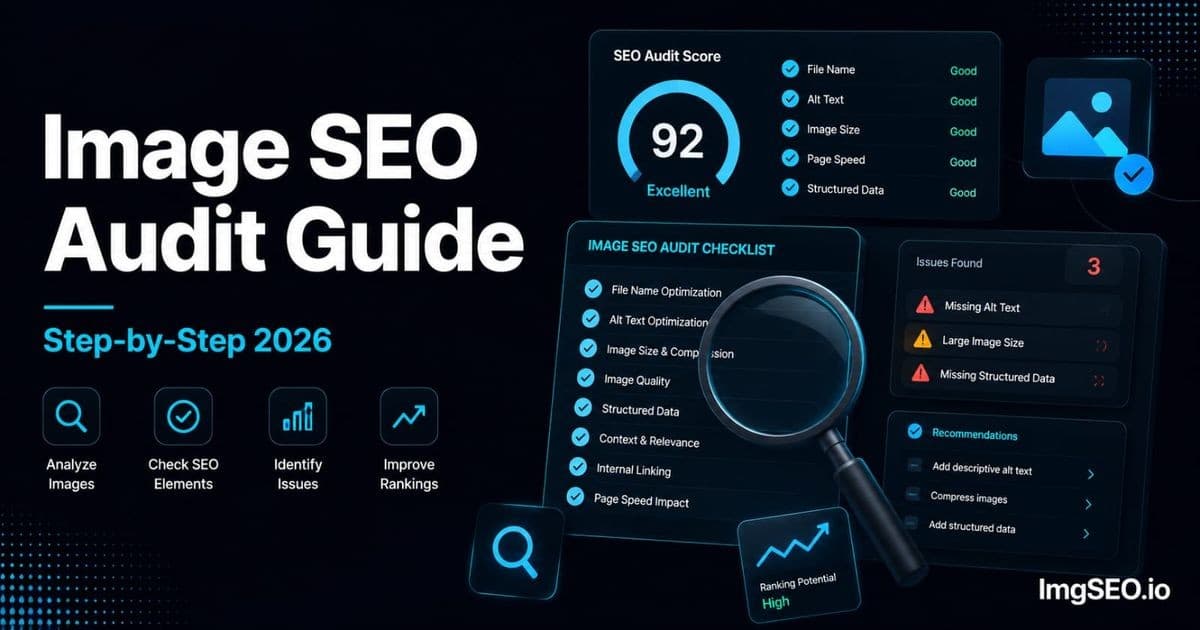
An image SEO audit makes the invisible visible. It gives you a systematic picture of where your image SEO stands across eight measurable dimensions, a scorecard you can act on, and a prioritized fix list so you address the highest-impact issues first.
This guide walks through each audit step with specific tools, what to look for, and a scoring framework you can apply to your store today. Most stores surface their first critical issue within 30 minutes of starting.
Key Takeaways
- A basic 8-step audit of a store with under 100 products takes 2–4 hours manually, using free tools: PageSpeed Insights, Search Console, and Screaming Frog.
- Empty alt text is the most common issue by far — 30–60% of product images in a typical e-commerce audit have empty or missing alt text, and it's the fastest fix since it requires no re-upload.
- Fix priority order matters: alt text first (highest impact, no re-upload), then file size, then filenames (requires re-upload), then metadata.
What is an Image SEO Audit?
An image SEO audit is a systematic review of all product images on your store to identify issues that prevent them from ranking in Google Images search results. It covers the full stack of image SEO signals: filenames, alt text, file sizes, image formats, embedded metadata, page speed, Google Images performance, and image count per product.
The goal is not a comprehensive list of everything that could theoretically be improved — it is finding the critical gaps that are actively costing you rankings and traffic, so you can fix the highest-impact issues first.
When to run a full audit:
- When setting up a new store
- Quarterly as a routine maintenance check
- After a site redesign or platform migration
- After a bulk product upload
- When Google Images traffic drops unexpectedly
Step 1: Audit Your Image Filenames
Filenames are the first SEO signal Google reads when it discovers an image. A filename like mens-leather-wallet-brown-bifold.webp tells Google exactly what the image shows before it reads a single byte of alt text. A filename like IMG_4521.jpg tells Google nothing.
How to Check Filenames
Screaming Frog (free up to 500 URLs): Crawl your store, go to the Images tab, export the full list of image URLs. Scan the filenames column for patterns.
Google Search Console: Navigate to Performance → Search type: Image → Pages tab. The image URLs are visible and you can spot filename patterns directly.
Manual spot check: Open your top 10 product pages, right-click each product image, copy the image URL, and read the filename portion.
What to Look For
- Camera filenames:
IMG_4521.jpg,DSC_0234.jpg,DSCN_0012.jpg - Generic names:
image1.jpg,product.jpg,photo.jpg,untitled.png - Numbers only:
12345.jpg,00892.webp - Spaces in filename — become
%20in URLs, which looks messy and is technically error-prone - Underscores instead of hyphens — Google treats underscores as word joiners, not separators:
brown_walletreads as one word,brown-walletreads as two
Scoring
| Score | Condition | |---|---| | ✅ Excellent | 0 bad filenames | | ✅ Good | Under 10% bad filenames | | ⚠️ Needs work | 10–30% bad filenames | | ❌ Critical | Over 30% bad filenames |
Filenames cannot be changed without re-uploading the image and creating a new URL. This makes fixing them more disruptive than fixing alt text, but the fix is permanent — once corrected, the good filename travels with the file forever. For a detailed renaming workflow, see the image filename SEO guide.
Step 2: Audit Your Alt Text
Alt text is the most direct and controllable text signal for Google Images ranking. It is also the most commonly missing one. Many stores have 60–80% of product images with empty or duplicate alt text and have no idea.
How to Check Alt Text
Screaming Frog: Crawl your store → Images tab → filter by "Missing Alt Text" or "Alt Text" column. Export results to see the full scope.
Google Search Console: Check the Enhancements section for accessibility-related issues — Google sometimes flags missing alt text as a usability problem.
Chrome DevTools (manual): Right-click any product image → Inspect → look for the alt attribute in the <img> tag. An empty alt="" or missing alt attribute is a gap.
Shopify: Screaming Frog crawl works directly on your Shopify storefront and is the most efficient method for stores with large catalogs.
What to Look For
- Empty alt text —
alt=""or thealtattribute missing entirely on product images - Duplicate alt text — the same description across multiple images on the same page or across multiple product pages
- Too short — under 20 characters (usually just a product SKU or generic label like "product image")
- Keyword stuffed — the same keyword repeated three or four times in one alt text field
- SKU-only —
alt="SKU-90234"describes nothing useful to Google
Scoring
| Score | Condition | |---|---| | ✅ Excellent | 0 images with empty alt text | | ✅ Good | Under 5% empty | | ⚠️ Needs work | 5–20% empty | | ❌ Critical | Over 20% empty |
Alt text is the fastest and highest-impact fix available in most audits. It requires no file re-upload — you edit it directly in your platform's product editor. For writing guidelines and templates, see the complete alt text guide for 2026.
Step 3: Audit Image File Sizes
Oversized images directly harm page speed, and page speed directly affects Google rankings. A product image weighing 2MB makes every visitor wait — and Google measures that wait via Core Web Vitals.
How to Check File Sizes
Google PageSpeed Insights (pagespeed.web.dev): Run your most important product pages through PageSpeed. It flags oversized images automatically under "Opportunities" and tells you the exact saving available.
Screaming Frog: Images tab shows file size for every image it discovers during the crawl. Sort by size descending to find the worst offenders immediately.
Chrome DevTools: Open DevTools → Network tab → filter by "Img" → reload the page. The "Size" column shows the transfer size of each image.
What to Look For
- Product images over 200KB — the target for individual product photos
- Any image over 500KB — only hero or lifestyle images at large viewport sizes should approach this
- Any image over 1MB — a clear sign of uncompressed originals being served directly
- Uncompressed originals — raw or minimally processed camera files served directly to visitors
Scoring
| Score | Condition | |---|---| | ✅ Excellent | All product images under 200KB | | ✅ Good | Average under 500KB | | ⚠️ Needs work | Some images over 500KB | | ❌ Critical | Multiple images over 1MB |
File size issues affect every single visitor to your store, not just Google. This makes them high-priority fixes regardless of their direct SEO impact. The image compression guide for e-commerce covers tools and quality settings for getting file sizes under control.
Step 4: Audit Image Formats
Using the wrong image format wastes file size budget that compression cannot fully recover. PNG files used for product photos are typically 2–3x larger than equivalent WebP files at the same visual quality.
How to Check Formats
Screaming Frog: Images tab shows file extensions. Export the list and use a spreadsheet filter to count how many .png, .jpg, and .webp files exist.
Chrome DevTools: Network tab → filter by "Img" → the "Type" column shows the actual format being served (sometimes different from the URL extension if your CDN is doing format negotiation).
What to Look For
- PNG used for product photos — PNG is lossless and preserves transparency but creates much larger files than JPEG or WebP for photographic content. If your product photos have no transparency, they should not be PNG.
- No WebP adoption — WebP delivers 25–35% smaller files than JPEG at the same visual quality. Stores still serving all images as JPEG are leaving meaningful file size savings on the table.
- AVIF — not yet required, but it delivers 50% savings over JPEG for supported browsers. Growing adoption in 2026.
- Inconsistent formats — a mix of PNG, JPEG, and WebP without a clear strategy often indicates images added at different times without format standards.
Scoring
| Score | Condition | |---|---| | ✅ Excellent | All images in WebP (or AVIF) | | ✅ Good | Mix of WebP and JPEG | | ⚠️ Needs work | All JPEG, no WebP | | ❌ Critical | PNG used for product photos |
For a full breakdown of format selection by use case, see the WebP vs JPEG vs PNG guide for e-commerce.
Step 5: Audit Image Metadata
Embedded metadata — EXIF and XMP fields baked into the image file itself — is the most underused image SEO signal. Google reads these fields. Fewer than 5% of e-commerce stores populate them. If your competitors are not doing it, doing it gives you a signal they lack.
How to Check Metadata
Windows File Properties: Download a sample image from your live store. Right-click → Properties → Details tab. Look for Title, Subject, Tags, and Comments fields. If they are empty or show camera model data, you have a gap.
ExifTool (free, command-line): Run exiftool image.jpg to see every metadata field in the file. Look for XPTitle, ImageDescription, XPKeywords (EXIF) and Title, Description, Subject (XMP).
Sample a cross-section — pull images from your top 10 products plus 10 random products. This gives you a representative picture of catalog-wide metadata coverage.
What to Look For
- Empty XPTitle — the EXIF title field; Google reads this as the image's primary label
- Empty ImageDescription — often maps to or confirms the alt text
- Empty XPKeywords — keyword array that reinforces topical relevance
- No XMP data at all — XMP is the modern standard and required for WebP metadata
- Default camera metadata still present — camera make, model, GPS coordinates — these should be stripped from product images before publishing
Scoring
| Score | Condition | |---|---| | ✅ Excellent | Title, description, and keywords populated in both EXIF and XMP | | ✅ Good | Title and description present | | ⚠️ Needs work | Only title present, or fields partially filled | | ❌ Critical | All metadata fields empty |
For a step-by-step workflow for adding metadata to product images, see the complete metadata guide.
Step 6: Audit Page Speed
Core Web Vitals are a Google ranking factor. Your product image is almost always the Largest Contentful Paint element on the page — the element Google uses to measure perceived load speed. A slow LCP is a direct ranking penalty.
How to Check
Run your five highest-traffic product pages through PageSpeed Insights. Use the mobile score — Google indexes mobile-first, so the mobile LCP is what counts.
Focus on:
- The LCP score and what element it is measuring (usually the main product image)
- The "Improve image delivery" diagnostic
- The "Properly size images" opportunity
- The "Serve images in next-gen formats" warning
What to Look For
- LCP over 2.5 seconds — the threshold between "good" and "needs improvement"
- "Serve images in next-gen formats" — images being served as JPEG when WebP is available
- "Properly size images" — images served larger than they are displayed (e.g., a 2000px image displayed at 400px)
- "Defer offscreen images" — below-fold images not lazy-loaded
- Main product image without
fetchpriority="high"— the LCP image should load immediately, not compete with other resources
Scoring
| Score | Condition | |---|---| | ✅ Excellent | LCP under 2.5s, no image-related warnings | | ✅ Good | LCP 2.5–4s, minor warnings | | ⚠️ Needs work | LCP 4–6s, multiple warnings | | ❌ Critical | LCP over 6s |
Step 7: Audit Google Images Performance
Search Console shows you whether your images are actually appearing in Google Images search results. Zero impressions on a product that has been live for months is a clear signal that something is blocking discovery or relevance.
How to Check
- Open Google Search Console for your domain
- Navigate to Performance
- Click Search type → select Image
- Check the Queries tab: what searches trigger your images?
- Check the Pages tab: which product pages generate image impressions?
- Watch the CTR column for pages with high impressions but low clicks
What to Look For
- Zero impressions on products live for over 4 weeks — possible indexing block, thin page, or very low domain authority
- High impressions, near-zero clicks — image is appearing in results but not compelling clicks; thumbnail composition or product presentation may be the issue
- Average position over 20 — not appearing on the first page of Google Images results
- Unexpected queries triggering images — images ranking for searches you did not target; update alt text to better match intent
Scoring
| Score | Condition | |---|---| | ✅ Excellent | Key product images appearing in positions 1–10 | | ✅ Good | Images appearing in positions 1–20 | | ⚠️ Needs work | Images appearing in positions 21–50 | | ❌ Critical | Zero impressions for products live over 4 weeks |
For a full guide on improving these metrics, see how to rank on Google Images.
Step 8: Audit Image Count per Product
Every image slot on a product listing is a separate indexable asset in Google Images. A product with two images has two chances to rank. A product with ten images has ten. Most sellers leave the majority of their slots empty.
How to Check
Manual review is the most practical method here. Open your top 20 products by revenue and count the images on each listing.
What to Look For
- Products with only 1–2 images — the most common finding; missed ranking opportunities on every product
- Missing lifestyle images — no shots of the product in use or in context
- Missing detail/close-up images — no shots of texture, material, hardware, or unique features
- Missing size reference images — relevant for apparel, accessories, or anything where scale matters
Scoring
| Score | Condition | |---|---| | ✅ Excellent | 8–10 images per product (or platform maximum) | | ✅ Good | 5–7 images | | ⚠️ Needs work | 3–4 images | | ❌ Critical | 1–2 images |
Creating Your Audit Report
After working through all eight steps, compile your findings into a scorecard. This gives you a single-view summary you can use for prioritization and to track improvement over time.
Audit Scorecard Template
| Area | Score (1–10) | Issues Found | Priority | |---|---|---|---| | Filenames | | X bad filenames | High / Med / Low | | Alt Text | | X empty | High / Med / Low | | File Size | | X oversized images | High / Med / Low | | Format | | X PNG photos | High / Med / Low | | Metadata | | X missing metadata | High / Med / Low | | Page Speed | | LCP: Xs | High / Med / Low | | Google Images | | Avg position: X | High / Med / Low | | Image Count | | X products under 5 images | High / Med / Low |
Prioritizing Fixes
- Critical (scores 1–3): Fix immediately — these are actively costing you rankings
- Needs work (scores 4–6): Fix within 30 days
- Good (scores 7–8): Improve when you have capacity
- Excellent (scores 9–10): Maintain current standard
Fixing What You Find: Priority Order
Not all issues are equal. This is the order to address them for maximum ranking impact per hour invested:
1. Empty alt text — Highest impact, fastest to fix. Edit directly in your platform's product editor, no re-upload required. One hour of focused alt text writing can cover 20–30 products.
2. Oversized images — Affects every visitor and every page speed score. Compress and re-upload starting with your highest-traffic pages. Use WebP format on re-upload.
3. Bad filenames — Requires re-upload (new URL), so it is more disruptive. Prioritize your top 20% revenue products. Once fixed, the improvement is permanent.
4. Missing metadata — Competitive advantage with low effort if you use the right tool. EXIF and XMP metadata can be added in bulk before re-uploading. Fewer than 5% of competitors are doing this.
5. Wrong format — Convert to WebP on your next round of image updates. Not worth re-uploading solely for format unless images are also oversized.
6. Low image count — Requires photography, which takes time. Plan a photo session for your top products and fill remaining slots with lifestyle and detail shots.
For the complete fix workflow for each issue, the image SEO checklist covers every step in detail.
Platform-Specific Audit Tips
Shopify Audit
Export product CSV: In the Shopify admin, go to Products → Export. The CSV includes image URLs which you can scan for filename patterns in a spreadsheet.
Screaming Frog on storefront: Crawl your Shopify store URL directly. Screaming Frog's Images tab gives you alt text status and file sizes for the full catalog.
PageSpeed focus: Run PageSpeed Insights on your 5 highest-traffic product pages. Shopify's CDN handles much of the speed work, but hero image sizes and third-party app scripts are common culprits for LCP issues.
Full Shopify optimization workflow in the Shopify SEO guide.
Etsy Audit
Etsy does not give you access to your raw image URLs for bulk analysis, so the audit is more manual.
Review top 20 listings: Open each one, click each image, and check whether the "Describe this photo" field is filled in. This is Etsy's alt text field and is the primary image SEO lever you control.
Check first image composition: Your first image is the thumbnail Google shows in search results. Check whether the product fills most of the frame, the background is clean, and the image is sharp at thumbnail size.
Full Etsy optimization workflow in the Etsy SEO guide.
WooCommerce Audit
WooCommerce audits benefit from more tooling than other platforms because you have direct server access.
RankMath SEO analysis: RankMath's content analysis flags missing alt text on images in product descriptions. Run it on your top products.
Screaming Frog: Works directly on WooCommerce stores and gives the most complete picture of alt text gaps and image file sizes across the full catalog.
ShortPixel or Imagify stats: If you are using one of these plugins, check the compression stats dashboard. It shows how many images have not been optimized — often revealing that new uploads have bypassed automatic compression.
Full WooCommerce optimization workflow in the WooCommerce image SEO guide.
Amazon Audit
Amazon provides less audit data than other platforms, but two checks are high-value:
Product title audit: Since Amazon uses your product title as the alt text for your main image, review your top product titles for keyword specificity. A title like "Wallet" ranks for far fewer Google Images queries than "Men's Brown Leather Bifold Wallet with RFID Blocking."
Image slot audit: Visit your top 20 ASINs and count the images. Amazon allows up to 9 images per listing. Most sellers use 3–4.
Full Amazon optimization workflow in the Amazon product image SEO guide.
How Often to Run an Image SEO Audit
| Trigger | Audit Scope | |---|---| | New store or redesign | Full 8-step audit | | Quarterly | Full 8-step audit | | Monthly | Quick check on new products only (alt text + filename) | | After bulk upload | Filenames and alt text on newly added products | | After platform migration | Full audit — migrations commonly introduce metadata loss or URL changes |
Frequently Asked Questions
How long does an image SEO audit take?
A basic 8-step audit of a store with under 100 products takes 2–4 hours if you are doing it manually. The longest steps are the Screaming Frog crawl and the Search Console analysis. With experience, the scorecard portion takes 30 minutes; fixing the issues takes longer depending on severity.
What tools do I need for an image SEO audit?
Minimum: Google PageSpeed Insights (free), Google Search Console (free), and a browser with DevTools. For a thorough audit: Screaming Frog (free up to 500 URLs), ExifTool (free), and access to your platform's admin. No paid tools are required to audit.
How do I check if my images have alt text?
Right-click any product image in your browser → Inspect → look for the alt attribute inside the <img> tag. An empty alt="" or no alt attribute means missing alt text. For bulk checking across hundreds of images, Screaming Frog's Images tab is the efficient path.
What is the most common image SEO issue?
Empty alt text — by a significant margin. In most e-commerce audits, 30–60% of product images have empty or missing alt text. It is the highest-impact fix and the fastest to implement without re-uploading images.
How do I check image file sizes on my store?
Open Chrome DevTools (F12) → Network tab → reload the page → filter by "Img". The Size column shows the transfer size of each image. Alternatively, Google PageSpeed Insights runs the check automatically and flags images that need compression.
Can I automate an image SEO audit?
Partially. Screaming Frog can crawl and export alt text and file size data automatically. PageSpeed Insights has an API. But interpreting the results, judging alt text quality, and prioritizing fixes still requires human review. The audit itself cannot be fully automated; the fixes that follow the audit can be.
How do I know if my images are indexed by Google?
Search site:yourdomain.com in Google Images — this shows indexed images from your domain. For more detail, Google Search Console → Performance → Image shows every image that has appeared in Google Images results, along with impressions, clicks, and average position. An image with zero impressions after 4+ weeks on an established domain likely has an indexing or relevance problem.
What should I fix first after an audit?
Alt text — always. It has the highest ranking impact, requires no re-upload, and can be done entirely inside your platform's admin. After alt text: file size (affects all visitors), then filenames (requires re-upload but is a permanent improvement), then metadata.
Conclusion
An image SEO audit reveals exactly where you are losing Google Images traffic and gives you a prioritized fix list that turns the findings into action. Most stores surface critical issues — primarily empty alt text and oversized images — within the first 30 minutes of auditing.
The fix order that delivers the fastest ranking improvement: alt text first, then file size, then filenames, then metadata. Each one addresses a different layer of how Google understands and ranks your product images.
ImgSEO automates the metadata (step 5), compression (step 3), and alt text (step 2) fixes in a single upload workflow — the three tasks that are most time-consuming to fix manually across a large catalog. After your audit identifies what needs attention, it is the fastest path from findings to fixed.
For the full optimization workflow that follows an audit, the e-commerce image SEO strategy guide covers how to build a systematic process across your entire catalog. Start with your audit, fix in priority order, and re-run the scorecard quarterly to track improvement.