If your products keep getting disapproved for "image issues," the fix starts with the image rules. The same rules matter when you're setting up Merchant Center and want to avoid the rejections that block launch. Google is strict about what a product feed image can show, and it hides non-compliant products from Shopping and free listings.
This guide is the practical reference. You'll get the feed fields, the technical specs, the disapproval traps, and the recovery workflow. It pairs well with our Amazon image requirements guide if you sell on both.
Key Takeaways
- The single biggest disapproval reason is promotional content on the main image: text, logos, watermarks, or badges. The
image_linkmust show the product clean.- Google is more permissive than Amazon on backgrounds — lifestyle and colored backgrounds are allowed, even on the main image.
- Most feed image errors are technical: an uncrawlable URL, a blocked CDN, or an expiring signed link. Fix the URL and the product returns.
Numeric rules below reflect Google's published standards, which change from time to time. Confirm the current figures in Merchant Center Help before a big feed change.
What image_link and additional_image_link do
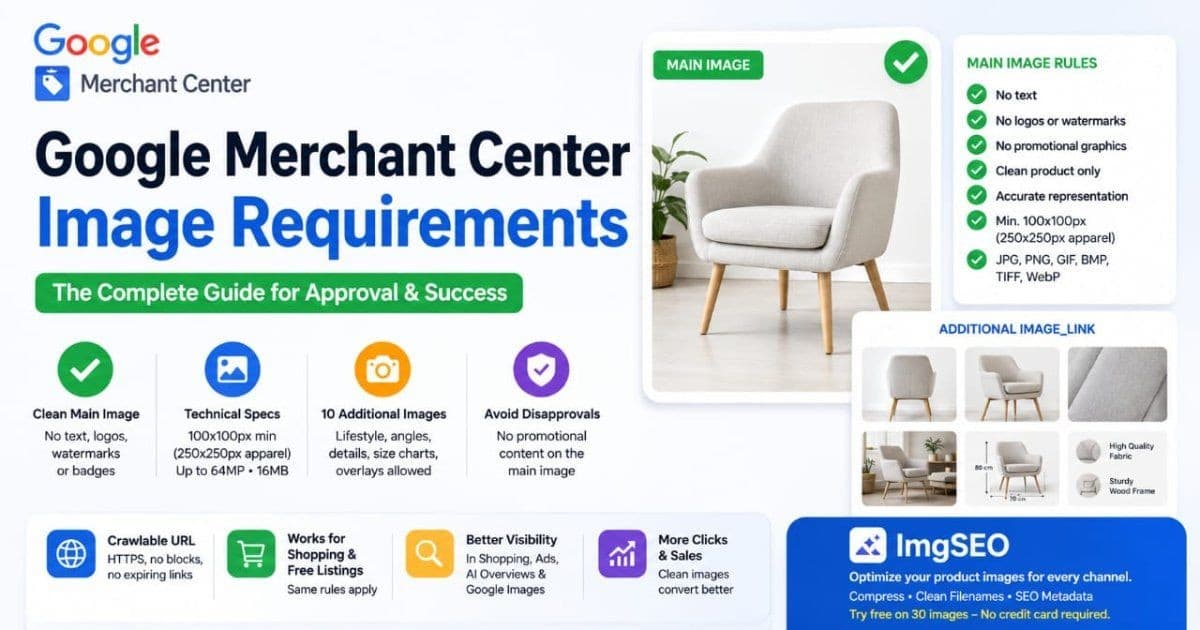
In a product feed, image_link is the URL of your main product image, and additional_image_link holds up to 10 extra image URLs. Google fetches those URLs and uses the images across the Shopping tab, free product listings, and increasingly in AI Overviews and Shopping ads.
The key mental model: Merchant Center images aren't uploaded like Amazon's. You submit a URL, and Google crawls the image from your server or CDN. That means the image's availability depends on your hosting, not on an upload that lives inside Google.
image_link— the main image shoppers see first. This is the one held to the strictest rules.additional_image_link— up to 10 more, for angles, lifestyle, and detail. These allow overlays and text that the main image can't have.
Because Google reads the image from your URL, the same file usually powers your product page, your feed, and your structured data. One asset, several indexing paths.
Technical image requirements
Per Google's current guidelines, product images must meet size and file limits. Non-apparel images need at least 100x100px, and apparel images at least 250x250px. The maximum is 64 megapixels and 16MB per file. Accepted formats are JPEG, PNG, GIF (non-animated), BMP, TIFF, and WebP.
- Minimum size. 100x100px for most products, 250x250px for apparel. These are floors, not targets.
- Practical target. Aim for at least 800x800px square. Larger images display sharper and give Google room to render across surfaces.
- File ceiling. 64 megapixels and 16MB maximum. Compress oversized files before they hit the feed.
- Formats. JPEG, PNG, GIF, BMP, TIFF, WebP. JPEG and WebP are the common e-commerce choices.
- Crawlable URL, HTTPS preferred. Googlebot must be able to fetch the URL. HTTPS is strongly recommended for both trust and reliability.
Compression matters here. A clean, well-sized JPEG or WebP stays under the file ceiling and loads fast when Google crawls it. For the wider picture of formats and compression, see our product image SEO guide.
The promotional overlay rule
The most common Merchant Center image disapproval is promotional content on the main image. Per Google's current guidelines, the image_link cannot contain text, logos, watermarks, or promotional badges like "sale," "free shipping," or "50% off." The main image must show the product, not an ad for it.
This trips up sellers who reuse marketing graphics as product images. A banner that works on your homepage will get the product disapproved in the feed.
What counts as a promotional overlay:
- Price or discount callouts ("$19.99," "Save 20%").
- Shipping or offer badges ("Free Shipping," "Best Seller").
- Your brand logo or a store watermark stamped on the image.
- Any text describing the product or the deal.
Keep the main image clean. Move every badge, logo, and callout to additional_image_link, where overlays are allowed.
Placeholder and generic image rejections
Google disapproves placeholder and generic images because they don't show the actual product. A generic silhouette, an "image coming soon" graphic, or a line drawing standing in for a physical product all fail review. The feed needs a real photo of the real item.
- Generic silhouettes. A category outline instead of your product.
- "Image coming soon." A text placeholder while you wait on photography.
- Illustrations for physical goods. A drawing where a photo is expected.
- Single-color blocks. A swatch with no product visible.
If a product isn't photographed yet, it's better to leave it out of the feed than to submit a placeholder. A disapproved product drags on your account; a missing one simply waits.
Aspect ratio, cropping, and why square wins
Square images perform best in Shopping because most surfaces render in a square or near-square frame. Google displays your image and may crop or pad it to fit, so a square source gives you the most predictable result. Off-ratio images risk awkward crops that cut off the product.
Two practical rules:
- Shoot or export square. A 1:1 image fills Shopping slots cleanly with no surprise cropping.
- Leave breathing room. Per Google's current guidelines, the product should fill most of the frame but not touch the edges. Roughly 75% to 90% of the image is the sweet spot.
If your product page uses a tall or wide hero, export a separate square version for the feed. Don't let Google's auto-crop decide which part of your product shoppers see.
White vs lifestyle backgrounds: Google is more permissive than Amazon
Unlike Amazon, Google allows lifestyle and colored backgrounds on the main product image. There's no pure-white requirement for image_link. A product on a wood table, in a room, or on a model can all serve as your main Shopping image.
This is a real difference from Amazon, where the main image must be pure white. On Google, a white background is a safe default, but a clean lifestyle shot is fully allowed and can lift click-through.
The line Google draws is about clarity, not background. The image must accurately show the product being sold, without promotional overlays. For the stricter side of the comparison, see our Amazon image requirements guide.
additional_image_link: your 10 extra slots
The additional_image_link field accepts up to 10 more image URLs, and these have looser rules than the main image. This is where lifestyle shots, size charts, alternate angles, and even light informational overlays belong. Use them to answer questions the main image can't.
- Alternate angles. Back, side, and detail views.
- Lifestyle and in-use. The product in context or on a person.
- Size and scale charts. Dimensions and fit information, overlays allowed.
- Feature callouts. Light annotations pointing out materials or specs.
Filling these slots gives shoppers a fuller picture on the product listing surface. Don't stop at one image when Google gives you ten more.
Variant images: color and size-specific image_link
For products with variants, each variant should carry its own image_link that matches that specific option. A red shirt variant needs a red shirt image, not the blue one. Google treats each variant as its own item, so a mismatched image reads as inaccurate.
Set the image at the variant level in your feed. If ten colors share one photo, shoppers who filter by color see the wrong product, and Google may flag the mismatch. Accurate variant images also reduce returns, because buyers see exactly what they're ordering.
Automatic Image Improvements: helpful or harmful?
Automatic Image Improvements is a Merchant Center setting that lets Google fix certain image problems for you. Most often, it removes promotional overlays or cleans up a background. It can rescue a disapproved product without a re-upload, but it can also alter images that were already fine.
When it helps:
- You have promotional text on a main image and no time to re-edit each one.
- A background is cluttered in a way that hurts approval.
When to be cautious:
- Your images are already clean and compliant. Automated edits can soften a good photo.
- Brand-critical shots where exact color and framing matter.
Treat it as a safety net, not a strategy. The reliable path is submitting clean images from the start, then leaving your best photography untouched.
Feed-level image errors
Many "image issues" aren't about the image at all — they're about the URL. Google can't approve an image it can't fetch. The frequent culprits are redirects, a robots.txt that blocks Googlebot-Image, hotlink protection on your CDN, and signed URLs that expire before Google re-crawls.
- Redirects. An
image_linkthat redirects can fail the fetch. Point to the final URL. - robots.txt blocking. If your CDN's robots.txt blocks Googlebot-Image, the crawl fails. Allow the image path.
- Hotlink protection. CDN rules that block external referrers can block Google too. Whitelist Google's crawler.
- Expiring signed URLs. Time-limited URLs go dead between crawls. Use stable, permanent image URLs in the feed.
When a product is disapproved but the image looks fine, check the URL in a private browser window first. If it doesn't load cleanly there, Google can't load it either.
Free listings vs paid Shopping: same rules, different crawl
Google applies the same image requirements to free product listings and paid Shopping ads. A clean, compliant image qualifies for both; a rule-breaking one is disapproved for both. What differs is crawl frequency, not the standards.
Paid Shopping items tend to get crawled and reviewed faster, because there's spend attached. Free listings can take longer to re-review after a fix. The rules don't change — only how quickly Google gets around to re-checking your correction.
So there's no separate "free listing image spec" to learn. Meet the standard once, and the same asset serves both channels.
Merchant Center images, your image sitemap, and Google Images
The same product photo can reach Google through two different doors: the Merchant Center feed and your website's image sitemap. The feed drives Shopping surfaces, while the sitemap and on-page markup drive organic Google Images. Same asset, separate indexing paths.
Your feed image doesn't automatically rank in Google Images. That side depends on the image being on a crawlable page with descriptive alt text, a clean filename, and ideally an image sitemap entry. To rank the same photos organically, follow our guide on how to rank on Google Images.
This is why the image on your own site matters as much as the feed. The feed wins Shopping; the on-page image wins organic search. Optimize both from one source file.
The disapproval recovery workflow
When Merchant Center disapproves a product for an image, the fix is a short loop. Read the exact reason, correct the image or URL, and resubmit. Most image re-reviews complete within a few days, and often faster for active Shopping campaigns.
- Read the reason. Open Merchant Center's Products or Diagnostics view. It names the specific policy, like promotional overlay or image not crawlable.
- Fix the right thing. Strip overlays, replace a placeholder, or repair the URL — whatever the diagnostic points to.
- Update the source. Change the image at its URL, or update the
image_linkvalue in your feed. - Resubmit. Push the updated feed or request a re-review so Google re-crawls.
- Confirm approval. Watch the product status flip from Disapproved to Approved once the re-review clears.
Keep a clean master image per product. When disapproval hits, you swap the URL's file and resubmit, instead of re-shooting under deadline pressure.
Frequently asked questions
Can I use the same image on my product page and Merchant Center?
Yes, and it's the normal setup. Your image_link points to an image hosted on your own site, so the product page and Merchant Center usually share the same file. Just keep the URL crawlable and live.
Does image quality affect Shopping ad rank?
Indirectly. Google doesn't score sharpness, but a clear, compliant image lifts click-through and conversion, which are real signals. A rule-breaking image gets disapproved and shows nothing, so quality sets the ceiling on performance.
Why does Merchant Center keep disapproving my image?
Usually promotional content on the main image — text, a logo, a watermark, or a badge. Placeholder images and uncrawlable URLs are the next-biggest causes. Read the exact reason in Merchant Center, fix that one image, and resubmit.
Get your feed images right the first time
Merchant Center image rules reward one habit: submit a clean, real photo at a crawlable URL, and keep the promotional graphics in the extra slots. Do that, and most disapprovals never happen.
The images you host on your own site do double duty — feed and organic search — so prep them once, properly. Try ImgSEO free — 30 images, no credit card required. It compresses your product photos and generates clean filenames and metadata for the versions on your site. For the full workflow across feed, sitemap, and Google Images, our complete image SEO guide ties it together.