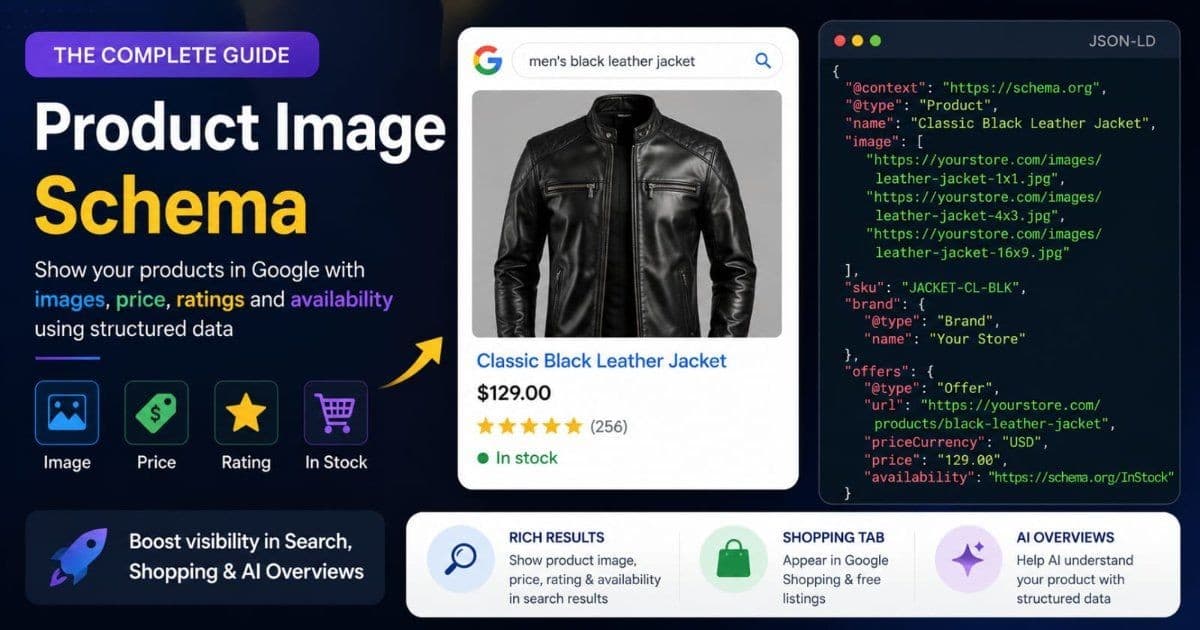
Your competitor's product shows up in Google with a photo, a price, a star rating, and an "In stock" label. Yours is a plain blue link. Same platform, similar products, similar photos. The difference usually isn't the photography — it's a block of invisible code called structured data, and specifically what's inside its image property.
Most schema guides are written for developers. This one isn't. If you can copy, paste, and swap out a few URLs, you can give Google everything it needs to show your product images in rich results, the Shopping tab, and AI answers.
This guide covers what product image schema is in plain language, the exact JSON-LD to use, what Google requires from the images themselves, and how to handle it on Shopify, WooCommerce, or a custom site.
Key Takeaways
- The
imageproperty inside Product schema is what connects your product photos to rich results, free Shopping listings, and AI Overviews — Google lists it as required for merchant listing experiences (Google Search Central).- Google asks for multiple high-resolution images in three aspect ratios — 16:9, 4:3, and 1:1 — each at 50,000+ total pixels (Google Search Central).
- Schema is machine-readable, not magic: a SearchPilot split test measured a 20% organic traffic uplift from adding review schema to product pages, while a similar combined test was inconclusive — implementation details decide the outcome (SearchPilot).
What Is Structured Data, in Plain Language?
Structured data is a label maker for your product page. Humans look at your page and instantly understand it: that's the product photo, that's the price, that's the name. Google's crawler is guessing at all of that. Structured data removes the guessing by stating each fact in a format machines read natively.
The format Google recommends is called JSON-LD. It's a small block of text, wrapped in a <script> tag, that sits invisibly in your page's code. It doesn't change how your page looks. It's purely an announcement: "this page is a Product; its name is X; its price is Y; its images are these three URLs."
You don't need to be able to write JSON-LD from scratch. Nobody does. You need to recognize its parts, copy a working template, and swap in your own values. That's genuinely the whole skill, and the annotated example below walks through it.
Schema markup is one layer of image SEO, alongside alt text, filenames, and embedded metadata. If you want the full picture of how those layers fit together, our complete image SEO guide maps it out.
Why the Image Property Punches Above Its Weight
One property inside Product schema — image — feeds three different surfaces where shoppers actually see your photos. That's why it deserves more attention than any other line in the markup.
Rich results in web search. Product rich results are the enhanced listings with a photo, price, rating, and availability. The photo in that result comes from your image property. In March 2025, both Google and Microsoft publicly confirmed they use schema markup for their generative AI features, with Google calling structured data "critical" because it's efficient and precise for machines to process (Schema App, "What 2025 Revealed About AI Search").
The Shopping tab and free listings. Google's merchant listing experiences — free product listings across the Shopping tab, Search, and Images — pull directly from structured data when you don't run a Merchant Center feed. For these placements, image isn't optional. Google's merchant listings documentation lists it as a required property.
AI Overviews and AI assistants. Google is clear that no markup guarantees inclusion in AI Overviews. But structured data makes your product's facts — including which image belongs to it — unambiguous to the systems assembling those answers. Microsoft's Bing team said it plainly at SMX Munich 2025: schema markup helps their LLMs understand content (Fabrice Canel, SMX Munich, March 2025).
Does it move traffic? Honestly: it can, and it's measurable. A SearchPilot split test on product pages measured an estimated 20% organic traffic uplift from adding review schema alone (SearchPilot). A separate test combining price and review schema was inconclusive. Schema rewards correct, complete implementation — not its mere presence. Getting the images indexed and ranking in the first place is its own job; see how to rank on Google Images for that side.
The Complete Product Schema Example, Annotated
Here's a full, valid Product schema block for a product page. It follows Google's current guidelines, including the multi-ratio image array. Read the code once, then the annotations.
<script type="application/ld+json">
{
  "@context": "https://schema.org",
  "@type": "Product",
  "name": "Hammered Sterling Silver Ring",
  "description": "Handmade hammered sterling silver ring with a brushed matte finish. Made to order in sizes 5-12.",
  "image": [
    "https://yourstore.com/images/hammered-silver-ring-1x1.jpg",
    "https://yourstore.com/images/hammered-silver-ring-4x3.jpg",
    "https://yourstore.com/images/hammered-silver-ring-16x9.jpg"
  ],
  "sku": "RING-HAM-925",
  "brand": {
    "@type": "Brand",
    "name": "Your Shop Name"
  },
  "offers": {
    "@type": "Offer",
    "url": "https://yourstore.com/products/hammered-silver-ring",
    "priceCurrency": "USD",
    "price": "48.00",
    "availability": "https://schema.org/InStock"
  }
}
</script>
What each part does:
"@type": "Product"— declares what this block describes. Google reads this first and applies its Product rules to everything inside."name"— the product title. Required for any product result. Match what's visible on the page."image"— the star of this guide. It's an array (the square brackets) holding three URLs: the same product shot cropped to 1:1, 4:3, and 16:9. Google's guideline: provide multiple high-resolution images in those three aspect ratios, each multiplying to at least 50,000 pixels (Google Search Central). A 300×300 crop clears the bar (90,000 pixels); Google recommends much larger — 1500×1500 performs best across listing formats."sku"and"brand"— recommended, not required. They help Google reconcile your page with the same product elsewhere on the web."offers"— the price block, and it's required alongsidenamefor product results.availabilityuses a fixed schema.org URL — copy it exactly. If you sell in another currency, changepriceCurrency, not the format.- Every URL is absolute — full
https://addresses, never/images/ring.jpg. This matters more than it looks; it's the number-one mistake covered below.
One rule sits above all of these: the markup must describe what's actually on the page. Same product, same price, same images a visitor sees. Google treats mismatched markup as spam, and it's the fastest way to lose rich results entirely.
ImageObject: When a URL Isn't Enough
The example above uses plain URL strings in the image property, and for product pages that's exactly right — it's what Google's own examples use. So when does the fancier ImageObject type earn its place?
Use ImageObject when the image itself is the content, or when you need to attach facts about the image. Three real cases for stores:
Gallery and lookbook pages. A seasonal lookbook or a customer-photo gallery isn't a Product page — the images are the point. Marking each up as an ImageObject with contentUrl, name, and a caption gives Google structure it can't infer from a wall of photos.
License and credit information. If you display photography that requires attribution, or you license your own product photos, ImageObject carries license, creator, and creditText properties. Google uses these for the Licensable badge in Google Images.
Richer image detail anywhere. You can swap any plain URL in an image property for a full ImageObject — Product schema accepts both. Do it when you have real data to add, not by default. Extra structure with empty values helps nobody.
Here's a minimal standalone ImageObject for a lookbook entry:
{
  "@context": "https://schema.org",
  "@type": "ImageObject",
  "contentUrl": "https://yourstore.com/lookbook/autumn-linen-apron-kitchen.jpg",
  "name": "Autumn linen apron styled in a farmhouse kitchen",
  "creator": {
    "@type": "Person",
    "name": "Your Shop Name"
  }
}
Schema describes the image to search engines, but the file itself can carry data too — title, description, and keywords embedded directly in the image. The two work as a pair. Our guide on adding metadata to product images covers that embedded layer.
How to Add It on Your Platform
You almost never write this markup by hand on a store platform. The job is knowing what your platform already does, and verifying it — not trusting it.
| Platform | Product schema | Your job | |----------|---------------|----------| | Shopify | Built into most themes | Verify it, fill gaps in product data | | WooCommerce | Via Yoast or Rank Math | Install, then verify the image array | | Custom site | Manual | Inject JSON-LD server-side per product |
Shopify
Nearly every modern Shopify theme — including all the free Online Store 2.0 themes — outputs Product JSON-LD automatically, populated from your product admin: title, price, availability, and images. You don't add code. Your work is making sure the source data is complete, because the theme can only mark up what you gave it.
Two things to verify. First, run a product URL through the Rich Results Test (next section) and confirm a Product type is detected with images attached. Second, check which images it includes — many themes emit only the featured image. If gallery shots matter to you, an SEO app or a small theme edit can extend the array.
WooCommerce
WooCommerce core outputs basic product structured data, and both Yoast SEO and Rank Math replace it with a more complete graph. Between the two, Rank Math is more generous with images out of the box, while Yoast keeps a leaner default output. Either way, the plugin builds the markup from your product's featured image and gallery — so the fix for thin schema is usually better product data, not plugin settings.
After activating either plugin, test a live product URL. Don't assume: plugin defaults change between versions, and a theme conflict can silently drop the markup.
Custom sites
On a custom stack (Next.js, Astro, or hand-built), you inject the JSON-LD yourself. The pattern: generate the script tag server-side from your product database, one block per product page, in the page <head>. Never inject it with client-side JavaScript after load — Google can miss markup that appears only post-render.
Generate the three image crops at upload time and store their URLs alongside the product record. Then the schema template just reads three fields. This pairs naturally with an image sitemap, which solves the related problem of getting those same URLs discovered; our image sitemap guide covers that piece.
How to Test That It Actually Works
Two free tools tell you everything, and they answer different questions. Use both.
Rich Results Test (search.google.com/test/rich-results) answers: is my markup valid right now? Paste a product URL, run the test, and look for "Product snippets" or "Merchant listings" among the detected items. Click into the result and confirm your image URLs appear — and that the tool could fetch them. An image listed but not fetchable is a warning sign worth chasing.
Search Console's enhancement reports answer: is Google applying this across my whole store? Under the Shopping and Enhancements sections, the "Merchant listings" and "Product snippets" reports list every product URL Google processed, split into valid pages, pages with warnings, and errors. Warnings are usually missing recommended fields. Errors mean no rich result for that page until fixed.
The rhythm that works: Rich Results Test while you're setting up, on one representative product. Search Console weekly after that, watching for error spikes after theme updates or plugin changes — that's when working schema quietly breaks.
Common Mistakes That Kill Product Rich Results
When product schema validates but rich results never show — or vanish — it's nearly always one of these four.
1. Relative image URLs. "image": "/images/ring.jpg" is a path, not an address. Google's guidance is explicit that image URLs must be crawlable and indexable, and a relative path outside your page's context resolves to nothing. Every URL in your markup — images and offers alike — must be absolute, starting with https://.
2. Images blocked from crawling. The markup says "here's the image," and robots.txt says "you can't have it." If your image directory or CDN host blocks Googlebot, the image property is a dead letter. This is the same discovery problem image sitemaps solve, and the same fix applies: check robots.txt on every host serving your images.
3. Markup that doesn't match the page. The schema says $48; the page shows $52 after a price change. Or the image array points to a product you replaced. Google checks markup against visible content, and sustained mismatches can cost you rich result eligibility site-wide — not just on the offending page. Automated schema from platform data mostly prevents this, which is a real argument against hand-maintained markup.
4. Missing required fields. An image array alone doesn't make a product result. Google requires name plus offers, and for merchant listings the price and availability inside it. Schema with beautiful images and no offer block gets you a validation warning and a plain blue link.
Your Product Image Schema Checklist
Run any product page through this before moving on:
- [ ] Product JSON-LD present in the rendered HTML (view source, search for
application/ld+json) - [ ]
imageis an array with 1:1, 4:3, and 16:9 versions - [ ] Every image multiplies to 50,000+ pixels — ideally 1500×1500 for the square
- [ ] All URLs absolute (
https://...), no relative paths - [ ] Images not blocked by
robots.txton any host, CDN included - [ ]
nameandoffers(price, currency, availability) present and matching the visible page - [ ] Rich Results Test detects Product with no errors
- [ ] Search Console's Merchant listings report shows the page as valid
Schema hands Google a labeled map of your product page. But the images on that map still compete on their own merits — alt text, filenames, and embedded metadata decide whether they rank once they're found. Markup without optimized images is a beautifully labeled entry in a race the photos can't win.
That second half is what ImgSEO automates: AI-generated alt text, keyword-rich filenames, and embedded SEO metadata for your product images, processed in batches. Point your schema at images that are already optimized, and both layers pull in the same direction. You can try it free on 30 images, no credit card required.
Label the product with schema. Optimize the pixels with metadata. The stores winning Google's product surfaces in 2026 are doing both.