
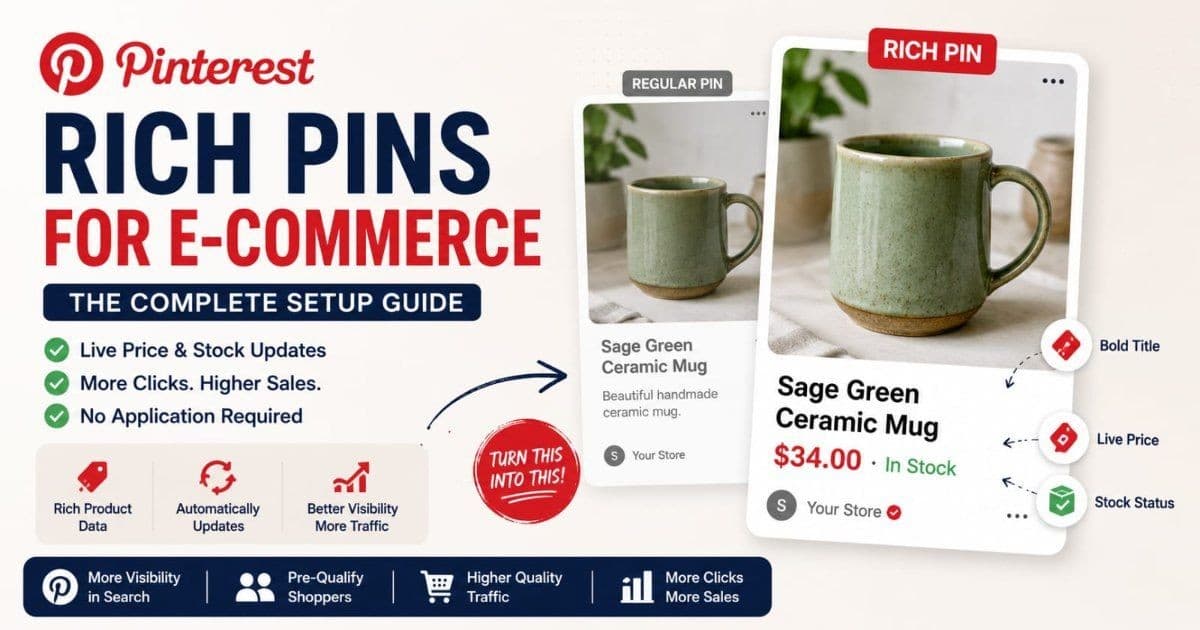
Your pins show an image and a plain caption. Your competitor's pins show a bold product title, the current price, and "In Stock" — pulled live from their website. Same platform, same search results, very different click appeal. The difference is Rich Pins, and the gap between having them and not having them is a few lines of metadata.
Here's the good news most guides haven't caught up with: the annoying part is gone. For years, enabling Rich Pins meant validating your site with a Pinterest tool and applying for approval. As of writing, that process is retired — Pinterest announced in late 2022 that validation and application are no longer required, and it now reads product metadata automatically when it crawls your pages (Pinterest Business Community). If your product pages carry the right markup, Rich Pins just happen.
So the real question isn't "how do I apply?" — it's "is my metadata right?" This guide covers exactly that: what Pinterest reads, the two markup routes, platform-specific setup for Shopify, WooCommerce, and custom sites, and how to debug pins that stay stubbornly plain.
Key Takeaways
- Rich Pins pull live product data (price, availability, title) from your site's metadata and update automatically when your site changes.
- As of writing there's no application step — Pinterest retired its validate-and-apply process and detects Open Graph or schema.org markup on its own (Pinterest Business Community).
- Schema.org Product markup is the smart route: the same JSON-LD powers Pinterest Rich Pins, Google rich results, and AI shopping assistants in one pass.
- Most "broken" Rich Pins come down to five metadata mistakes — wrong og:type, malformed price, stale availability, contradictory markup, or waiting on a recrawl.
What Are Rich Pins?
Rich Pins are pins that display live information pulled directly from the linked page's metadata. For a product pin, that means the product title in bold, the current price, and stock status appear on the pin itself — and when you change the price on your site, the pin updates on its own the next time Pinterest crawls the page.
That sync is the point. A regular pin is a snapshot: whatever the pinner typed stays there forever, wrong prices and all. A Rich Pin is a live window into your product page. Pin it once, and it keeps telling the truth for years — which matters on a platform where pins from our Pinterest SEO guide's compounding logic keep surfacing in search for months.
Rich Pins are free, organic, and separate from ads. They're also separate from product tags and catalogs, which we'll untangle below.
The Three Types of Rich Pins (and the One That Matters for Sellers)
As of writing, Pinterest supports three Rich Pin types (Pinterest Business help) — a fourth, App Pins, was retired along the way:
| Type | What it displays | Who needs it | |------|-----------------|--------------| | Product | Live price, availability, product title | E-commerce sellers — this is yours | | Article | Headline, author, description | Bloggers and publishers | | Recipe | Ingredients, cook time, serving size, ratings | Food creators |
Product Rich Pins are the e-commerce workhorse, and the rest of this guide focuses on them. One nuance worth knowing: if you also run a blog on your store (and you should — content pins drive discovery), Article Rich Pins come from the same family of markup, and most SEO plugins enable both at once.
Why Rich Pins Matter for Search and Clicks
Three reasons, in order of impact:
They pre-qualify the click. A pin showing "$48 — In Stock" answers the two questions every shopper has before clicking. The people who click through a price they've already seen are buyers, not browsers, so the traffic converts better — and the lookers who'd have bounced never inflate your stats.
They stand out in search results. The bold title styling and price line give Rich Pins more visual weight in a search grid full of bare images. In a column of look-alike product pins, the one with a price attached reads as a store, not a mood board.
They feed the algorithm more text. The title and metadata Pinterest pulls from your page become indexable signals it can match against searches — on top of whatever the pin description says. More accurate, machine-readable product data also underpins merchant-facing features like shopping surfaces and the Verified Merchant Program, where current price and stock data is an entry requirement.
How Pinterest Reads Rich Pin Data
Pinterest builds product Rich Pins from one of two markup vocabularies on your product page (Pinterest Business help):
- Open Graph tags — the same
og:meta tags that control how your links preview on social platforms, extended with product fields. - Schema.org Product markup — the structured data vocabulary (usually JSON-LD) that also powers Google's rich results.
Either works. The rule that matters is consistency: if both exist on the page — and on most platforms they do — they must agree. A JSON-LD block saying $34 while Open Graph says $29 is the classic self-inflicted Rich Pin failure, because you can't control which one Pinterest trusts on a given crawl.
And to repeat the headline fact, because a decade of old tutorials still says otherwise: as of writing, there is no application, no validator submission, no approval wait. Add valid markup, and Pinterest picks it up when it crawls the page.
The Open Graph Route
Here's a complete, annotated product page head for the Open Graph route:
<!-- Identity: what the page is -->
<meta property="og:type" content="product" />          <!-- REQUIRED: tells Pinterest this is a product -->
<meta property="og:title" content="Sage Green Ceramic Mug — Handmade Pottery" />
<meta property="og:description" content="Wheel-thrown stoneware mug in a matte sage glaze. Holds 12 oz. Dishwasher and microwave safe." />
<meta property="og:image" content="https://yourstore.com/images/sage-green-ceramic-mug.jpg" />
<meta property="og:url" content="https://yourstore.com/products/sage-green-mug" />

<!-- Commerce: what Pinterest displays on the pin -->
<meta property="product:price:amount" content="34.00" />       <!-- number only, no currency symbol -->
<meta property="product:price:currency" content="USD" />       <!-- ISO code: USD, EUR, GBP... -->
<meta property="product:availability" content="instock" />     <!-- instock, out of stock, preorder, backorder -->
The three commerce fields are where mistakes concentrate. Price is a bare number — 34.00, never $34.00. Currency is the ISO code in its own tag. Availability uses Pinterest's expected values, and it must reflect reality: markup that says instock for a sold-out product shows shoppers a promise your store breaks on arrival.
Note the og:image line: that's also the image Pinterest grabs when someone pins your page with the browser button, so it should be your best product shot — properly named and compressed, per our Pinterest image SEO guide.
The Schema.org Route (Recommended)
If you're adding markup by hand, JSON-LD Product schema is the better investment, because it does double duty: the exact markup Pinterest reads is also what qualifies you for Google rich results, Shopping surfaces, and AI shopping assistants. The fields Pinterest cares about:
<script type="application/ld+json">
{
  "@context": "https://schema.org",
  "@type": "Product",
  "name": "Sage Green Ceramic Mug — Handmade Pottery",
  "description": "Wheel-thrown stoneware mug in a matte sage glaze. Holds 12 oz.",
  "image": "https://yourstore.com/images/sage-green-ceramic-mug.jpg",
  "offers": {
    "@type": "Offer",
    "price": "34.00",
    "priceCurrency": "USD",
    "availability": "https://schema.org/InStock"
  }
}
</script>
name, image, and the offers block (price, currency, availability) are the load-bearing fields. Availability here uses schema.org's URL values — InStock, OutOfStock, PreOrder — not the Open Graph strings; each vocabulary keeps its own dialect.
The one-markup-three-surfaces payoff is real: this block feeds Pinterest Rich Pins, Google's product rich results, and the AI assistants that increasingly recommend products. We walk through the full Product schema (reviews, ratings, image requirements) in our product image schema guide, and the feed-based sibling requirements in the Google Merchant Center image guide.
Setup by Platform
Shopify
Shopify outputs Open Graph product tags automatically on every product page, including price and availability — which is why Shopify stores often have working Rich Pins without knowing it. Verify rather than assume: open a product page, view source, and search for og:type and product:price:amount. If your theme is heavily customized, the social-sharing snippet may have been edited; the fields above are your checklist. Shopify's Pinterest sales channel app adds the catalog/tagging layer on top, but the organic Rich Pin markup ships with the platform.
WooCommerce
WooCommerce itself doesn't emit the full set — your SEO plugin does. Yoast SEO and Rank Math both add Open Graph and schema.org Product markup to product pages when their Open Graph/schema features are on. Check two things: that the social/Open Graph module is actually enabled (it's a setting, not a given), and that price and availability appear in the output, since older or free-tier configurations sometimes emit og:title and og:image but skip the commerce fields. View source on a product page and confirm all three commerce fields exist.
Custom Sites (Next.js and Friends)
You need both halves in your product page's head. Open Graph basics can go through your framework's metadata system, but note that many metadata APIs don't natively support og:type=product and the product:* fields — you may need to emit those tags manually (in Next.js, via the metadata other field or literal <meta> tags in the page head). The JSON-LD block is a plain script tag rendered with the page — generate it from the same product object that renders your price display, so the markup can never drift from what the page shows. Server-render all of it; metadata injected client-side after load is a gamble on the crawler's patience.
Do You Still Need to Apply? The Validator Story
Short answer: no. Longer answer, because half the internet still says otherwise: until late 2022, enabling Rich Pins meant pasting a product URL into Pinterest's Rich Pins Validator, fixing whatever it flagged, and clicking Apply. Pinterest then retired the requirement — since September 2022, adding the metadata is the entire process (Pinterest Business Community) — and eventually the official validator and URL debugger tools went offline too.
What replaces the validator is ordinary verification: view source on your page, check the fields, pin the page, and look at the result (full checklist below). Third-party Open Graph checkers can preview what crawlers see, but your browser's view-source is authority enough.
If you enabled Rich Pins under the old system: you're grandfathered in, nothing to redo. If a guide tells you to "apply via the validator": that's your signal the guide predates the change.
Claim Your Domain First
Domain claiming isn't part of the Rich Pin markup, but do it anyway — it's the step that makes the Rich Pin traffic yours. Claiming (via a DNS record or an HTML tag/file on your site) unlocks three things: your profile and name attach to every pin anyone creates from your site, Pinterest Analytics starts reporting on all of those pins rather than just your own, and your account becomes eligible for merchant features that require a claimed domain.
The mechanics take about ten minutes in Pinterest's settings. Our Pinterest SEO guide covers the ranking-side benefits; here it's enough to say that Rich Pins without a claimed domain is traffic with the name tag torn off.
When a Catalog Feed Beats Page-by-Page Metadata
Rich Pins and catalogs solve different sizes of the same problem. Rich Pins enhance whatever gets pinned, one crawled page at a time, free and automatic. A catalog is a structured feed of your entire product list uploaded to Pinterest, which powers shopping surfaces, product tags on pins, and the Verified Merchant Program — VMP requires a synced catalog with current pricing, the Pinterest Tag installed, and an account at least three months old (Pinterest Business help).
The practical split:
- A handful of products, organic focus → Rich Pin markup alone is plenty.
- Dozens-plus products, or you want product tags on story pins and shopping placement → set up the catalog. Shopify and WooCommerce integrations generate the feed automatically from the same product data.
They stack: page metadata keeps organically pinned pages rich, the catalog powers merchant surfaces. Sellers using product tags on multi-frame pins (covered in our Idea Pins guide) are already in catalog territory.
Common Rich Pin Mistakes
Five failures account for nearly every "my Rich Pins don't work" case:
- Missing
og:type=product. Without it, Pinterest doesn't treat the page as a product, and the price fields get ignored. The single most common miss on custom sites. - Malformed price.
$34.00in the amount field, currency symbol included, or price and currency mashed into one tag. Number inamount, ISO code incurrency, separately. - Availability that lies. Markup hardcoded to
instockwhile the product sold out. Generate availability from live stock state, never as a static string. - JSON-LD contradicting Open Graph. Two markup blocks, two different prices — usually one plugin updating and another caching. Pick one source of truth and generate both from it.
- Fixing the markup, then judging by old pins. Existing pins update only when Pinterest recrawls the linked page, which can lag. Test with a fresh pin of the fixed page; if the new pin is rich, the fix works and old pins will follow as recrawls happen.
How to Verify Your Rich Pins Are Working
Three checks, cheapest first:
- The visual check. Find a pin of one of your product pages (or create one) and look at it in your profile or search results. Bold title plus a price/stock line under the image = rich data flowing. Plain caption = not yet.
- View source. Open your product page in a browser, view the page source, and search for
og:type,price, andavailability. Confirm every field from the examples above is present, populated, and matches what the visible page says. This catches 90% of problems in two minutes. - The fresh-pin test. After any markup change, pin the page fresh. A new pin picks up current metadata immediately, so it isolates "markup broken" from "waiting on recrawl" — the two problems old tutorials used the validator to distinguish.
While you're in the page source, look at the og:image and its filename and alt text — that image is what gets pinned from your site, and a keyword-rich filename ranks in both Pinterest and Google Images. ImgSEO generates optimized filenames, AI alt text, and embedded metadata for product images in one pass, so the image half of your product page is as machine-readable as the markup half. The broader principles live in our image SEO guide.
FAQ
Do I need to apply or reapply for Rich Pins?
No — as of writing, there's no application at all. Pinterest retired the validate-and-apply process in late 2022 and now reads Open Graph or schema.org markup automatically when it crawls your pages (Pinterest Business Community). Valid metadata is the entire requirement, and sites approved under the old system don't need to redo anything.
Why don't my old pins show Rich data after I added schema?
Pinterest has to recrawl the linked page before existing pins pick up new metadata, and recrawl timing isn't guaranteed. Test with a fresh pin of the fixed page — if the new pin shows rich data, your markup works and older pins should update as Pinterest revisits them. If the fresh pin stays plain, the markup itself still has a problem.
What's the difference between Rich Pins and a product catalog?
Rich Pins enhance pins one crawled page at a time from your site's metadata — free and automatic. A catalog is a structured product feed uploaded to Pinterest that powers shopping surfaces, product tags, and the Verified Merchant Program (Pinterest Business help). Small shops can live on Rich Pins alone; catalogs pay off at scale.
Should I use Open Graph or schema.org markup?
Either works — Pinterest reads both. Schema.org Product in JSON-LD is the better investment because the same markup powers Google rich results, Shopping eligibility, and AI shopping assistants. Most platforms output both; your job is making sure the two never disagree on price or availability.
How do I check if my Rich Pins are working?
Pin one of your product pages and look at the result: a bold title with price and stock under the image means rich data is flowing. To debug, view the page source and confirm og:type, price, currency, and availability are present and match the visible page. After fixes, always test with a fresh pin.
Conclusion
Rich Pins are the rare SEO upgrade that got easier: the application process is gone, the markup is a dozen lines, and on Shopify it's probably already live. What's left is accuracy — an og:type that says product, a price that parses, availability that tells the truth, and two markup vocabularies that agree with each other. Get those right and every pin of your products becomes a live, self-updating storefront listing inside Pinterest search.
Do it once and the same work pays three times, because the schema that feeds Pinterest also feeds Google rich results and AI shopping assistants. Verify with a fresh pin, claim your domain so the traffic carries your name, and graduate to a catalog when your product count justifies it.
The markup makes your pins rich; the image makes them clicked. ImgSEO handles the image half — keyword-rich filenames, AI alt text, compression, and embedded metadata for your product photos in one batch pass, ready for your product pages and every pin that comes from them. Try it free, no credit card required.


